


Outlier AI Trainer Platform Test: From Job Search to Signup
Test: Homepage and Expert Positioning
What we tested:
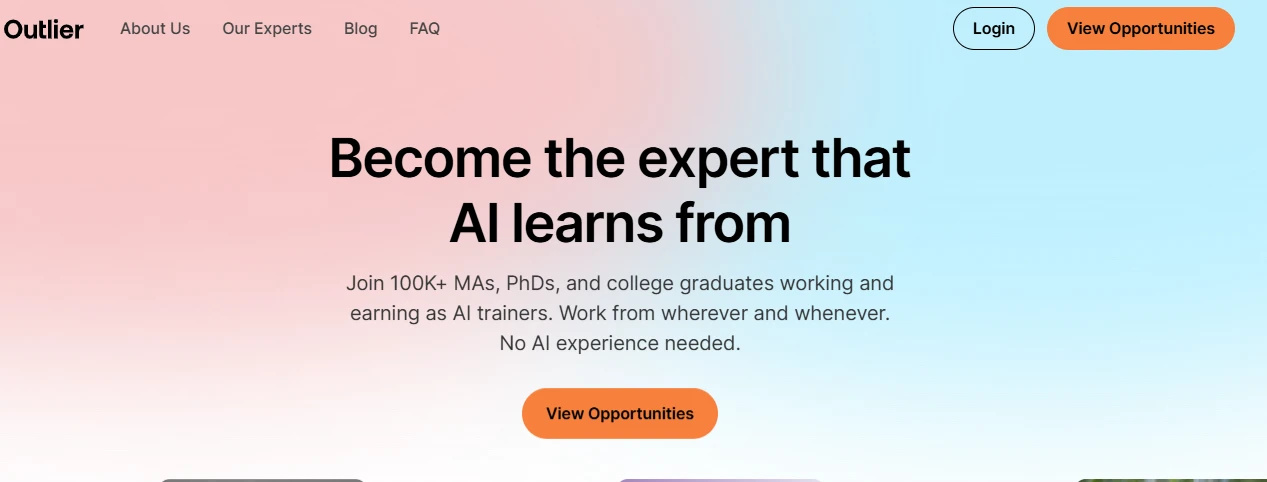
We opened the Outlier homepage to understand how the platform introduces itself to new users.
What is shown:
The homepage uses the headline “Become the expert that AI learns from” and promotes remote AI-training opportunities for MAs, PhDs, college graduates, and skilled professionals. The page highlights flexible work, no AI experience requirement, and a strong call-to-action button for viewing opportunities.
Commentary:
Outlier clearly positions itself as a platform where subject-matter experts can earn money by helping train AI models. The messaging is simple, direct, and focused on remote earning opportunities, which makes the first impression easy to understand for new applicants.
Job Search and Opportunity Listings
What we tested:
We clicked View Opportunities and checked the available roles, filters, and job cards.
What is shown:
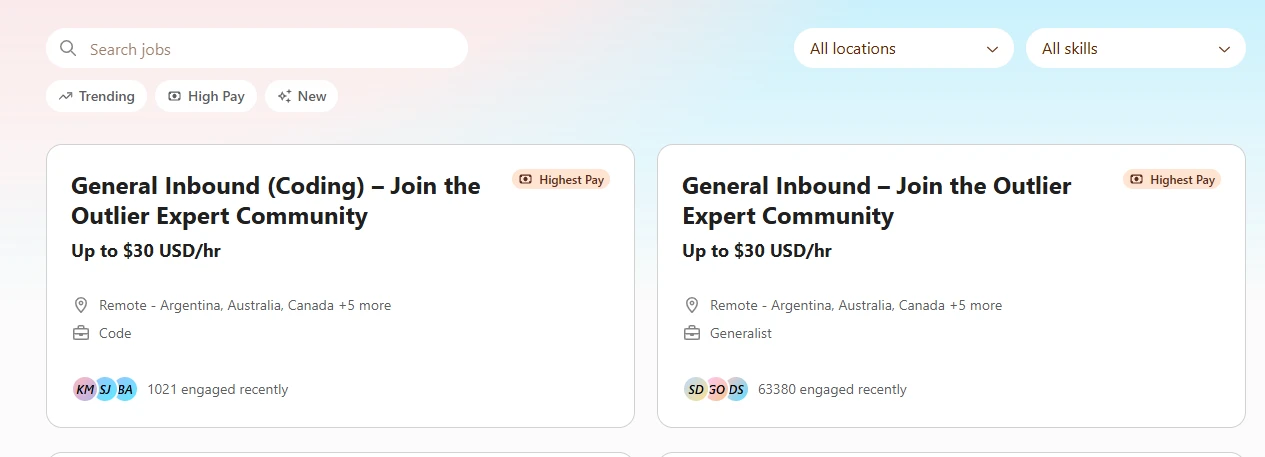
The jobs page includes a search bar, filters for location and skills, and job cards such as:
- General Inbound (Coding) – Join the Outlier Expert Community
- General Inbound – Join the Outlier Expert Community
The coding role shows pay of up to $30 USD/hr, remote availability across multiple countries, and an engagement count.
Commentary:
The opportunity page is easy to scan. Each role card shows the role name, pay range, category, remote countries, and user engagement. However, the listings feel broad, and users may still need to click inside to understand exact qualification requirements.
Role Detail Page and Community Application
What we tested:
We opened the General Inbound Coding opportunity to check the role detail and application flow.
What is shown:
The role detail section explains that users can join Outlier’s global expert community and get matched to paid AI-training projects when they open. It also shows supported locations and the category Code.
Commentary:
The role detail page focuses more on joining the expert community than applying for one fixed job. This is useful for applicants who want future AI-training opportunities, but it may feel less specific for someone expecting a traditional job description.
Test 4: Application Steps Preview
What we tested:
We reviewed the application process shown before signup.
What is shown:
Outlier displays a simple four-step process:
- Build Your Profile
- Confirm Your Identity
- Validate Your Skills
- Start Earning On Projects
Commentary:
The application process is clearly explained before signup, which helps users understand what to expect. The identity and skill validation steps also suggest that Outlier screens applicants before assigning projects.
Sign-Up Page Experience
What we tested:
We clicked Apply Now to start the application process.
What is shown:
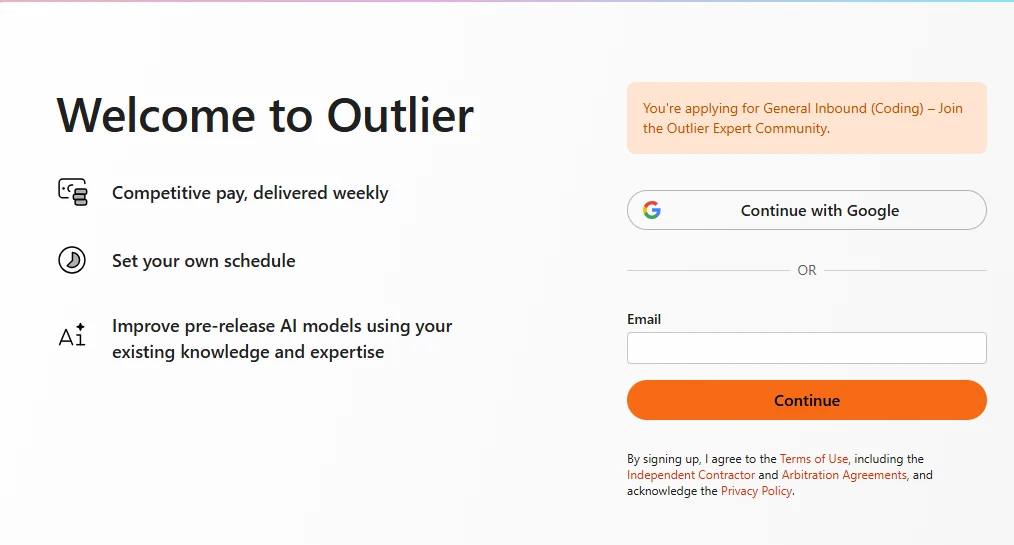
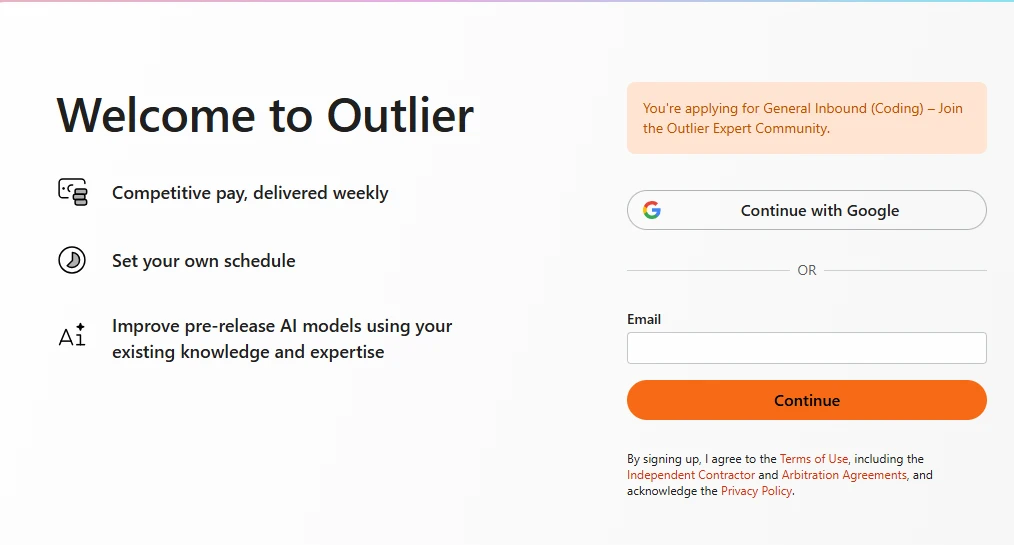
The sign-up page welcomes the user to Outlier and highlights three benefits:
- Competitive pay, delivered weekly
- Set your own schedule
- Improve pre-release AI models using your existing knowledge and expertise
The page allows users to continue with Google or enter an email manually.
Commentary:
The sign-up page is clean and minimal. It reinforces the main benefits before asking the user to create an account. Having both Google login and email signup gives users flexibility.
Test 6: Email-Based Signup Test
What we tested:
We entered an email address and clicked Continue to test the email signup flow.
What is shown:
After entering the email, Outlier shows a message asking the user to click the link sent to the email address.
Commentary:
The email verification step works as expected. Outlier sends a secure sign-in link instead of asking for a password immediately. This makes signup simple, but users must access their inbox quickly to continue.
Verification Email Received
What we tested:
We checked the inbox to confirm whether the Outlier sign-in email arrived.
What is shown:
The email includes the Outlier logo, the heading “Let’s Get Started”, and a button labeled “Sign In to Outlier.”
Commentary:
The verification email is straightforward and easy to understand. The call-to-action button is visible, and the message clearly tells the user to sign in securely to continue.
Test 8: Security Warning During Email Link Opening
What we tested:
We clicked the email sign-in link to continue the signup process.
What is shown:
The browser displayed a warning saying “This site doesn’t support a secure connection.” It also advised that attackers may see or change information if the site is not using HTTPS.
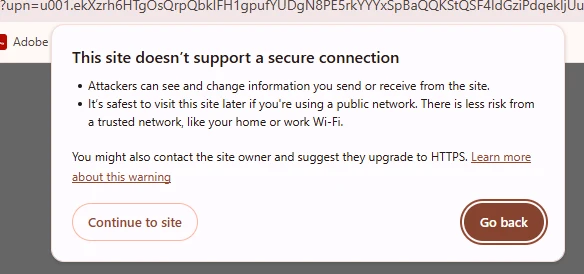
Commentary:
This is an important issue in the user journey. A security warning during sign-in can reduce trust, especially because the user is trying to access an account through an email verification link. Outlier should ensure all verification links open through a secure HTTPS connection.
Test 9: Verification Failed / Token Expired
What we tested:
We continued the sign-in process after opening the verification link.
What is shown:
The page showed “Verification Failed” with the message “Token expired.”

Commentary:
The verification token expired before the signup could be completed. This creates friction for new applicants. Outlier does provide a resend option earlier in the flow, but the process would be smoother if the token duration were longer or the expired page gave a direct resend button.