ZeroGPT - Testing And Output
Step 1: Open the ZeroGPT site
When you open ZeroGPT, the AI Text Detector loads by default. In the middle of the page there is a large text box that prompts you to type or paste your text. Just below it sits a blue Detect Text button, with an Upload File option beside it and a character counter on the right. The free check allows up to 15,000 characters at a time.
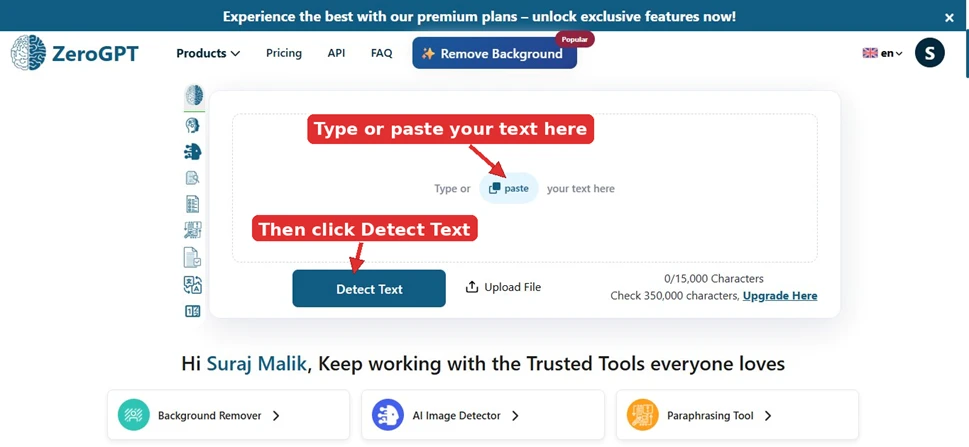
Image 1: The landing page. The arrows mark where your text goes and the Detect Text button you will use.
Step 2: Paste your text and run the check
Click inside the box and paste the text you want to check. As you add text, the character counter updates in real time. In this test the pasted paragraph came to 603 of the 15,000 free characters. Once the text is in, click the Detect Text button to start the scan.
This is the text I used for the test:
Instead of only guessing what the app has learned from their behavior, users can now view topics that affect recommendations and make changes. That gives people a more direct way to correct the feed when it starts showing too much of something or when their interests change. This is important because social feeds often learn from short-term behavior. A user may watch a few fitness videos, political clips, celebrity edits, or shopping posts out of curiosity, then see the platform push more of the same content for days or weeks. Over time, the feed can drift away from what the user actually wants. |
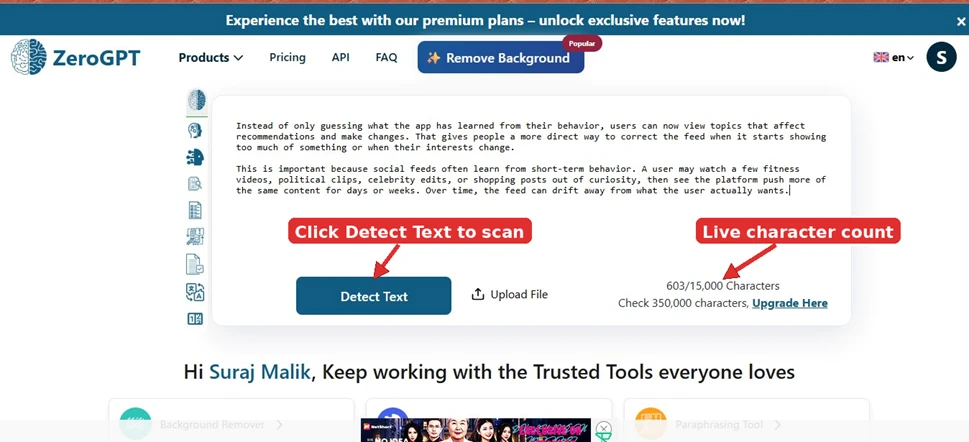
Image 2: The text pasted in. Click Detect Text, and the live character count tracks how much you have entered.
Step 3: Read the detection result
ZeroGPT returns a result in a few seconds. At the top it gives a plain summary, in this case that the text is most likely human written but may include parts generated by AI. A gauge shows the AI probability score, which came out to 38.8 percent for this sample. Below the gauge, the sentences the tool believes are AI generated are highlighted in yellow, so you can see exactly which parts were flagged. A Humanize Text button also appears. That is an optional tool that rewrites the flagged text to sound more human, and you do not need to use it to read your result.
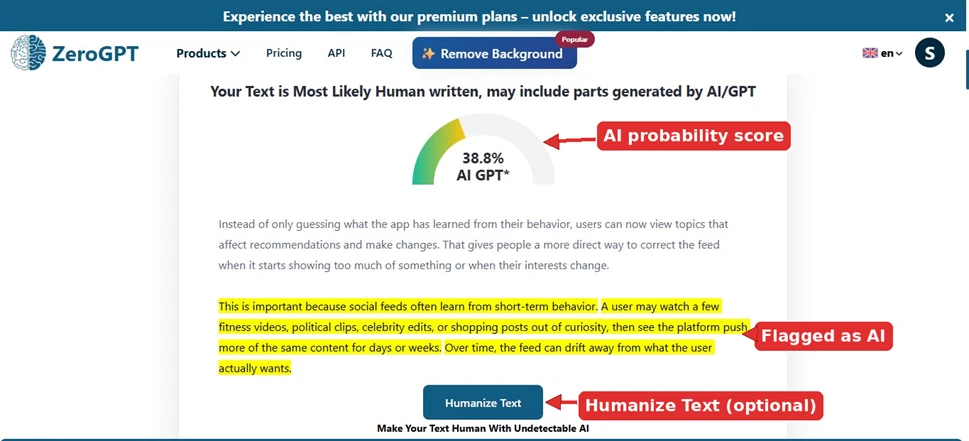
Image 3: The result screen, showing the AI probability score, the flagged sentences, and the optional Humanize Text button.
Good to know
• The basic AI check runs without an account or login.
• The free scan covers up to 15,000 characters per check. A larger 350,000 character check is offered on a paid plan.
• The percentage is an estimate, not proof. Treat it as a guide rather than a final verdict.
• You can copy your text and the result into any document you like.