
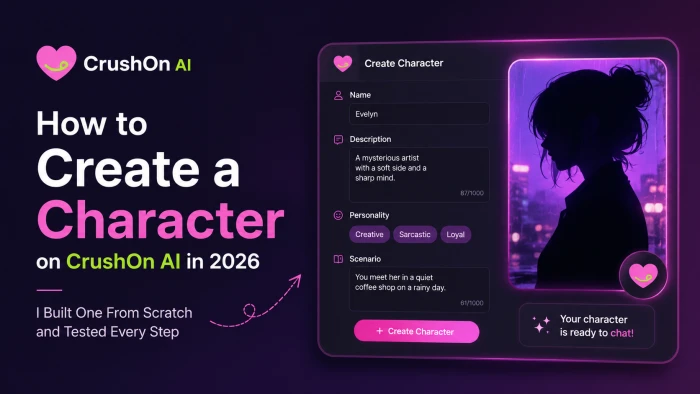
I kept running into CrushOn AI guides that described buttons I couldn't find. Most of them were written a year or two back, when you uploaded a JPG, picked a genre like “anime” or “celebrity,” and hit save. The builder looks nothing like that now, and following an outdated guide is a fast way to get lost on the first screen.
So I did the obvious thing. I opened a fresh account and built a character called Su Lia from an empty draft, screenshotting every screen on the way through. What follows is that exact build, in order, on the current 2026 interface, with each screen shown as I saw it.
By the end you'll have a published character. Then I'll show you a small test I set up on purpose, one that checks whether the greeting and the example dialogue I wrote actually carried into the live chat. CrushOn AI is an 18+ platform, so a handful of the settings below deal with mature content directly. I'll point those out as we reach them rather than tiptoe around them.
Let me start where every new account starts.
Signing in before you can build anything
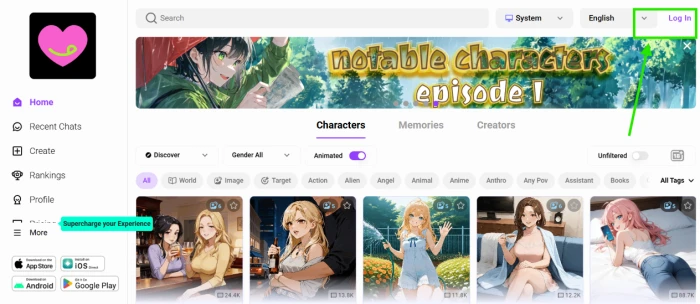
The homepage is a wall of community characters. A search bar runs across the top, and a Log In button sits in the top-right corner. You can scroll and browse all of this without an account, but the moment you want to make something of your own, that Log In button is the only way forward.
Clicking it opens a small sign-in modal.
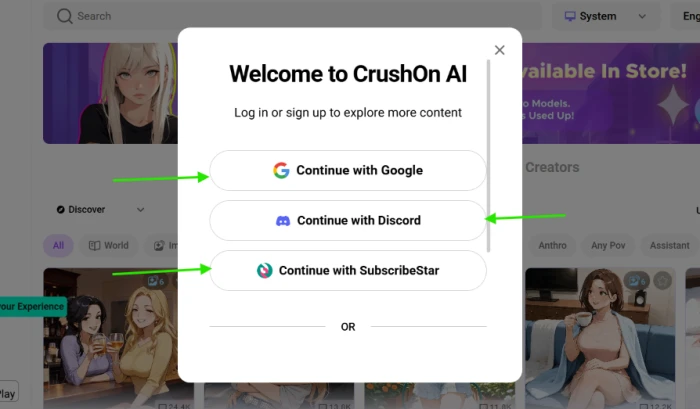
CrushOn AI offers a few doors in. I used Google because it was quickest. Continue with Discord sits right beneath it, and Continue with SubscribeStar below that, with a plain email option under the “OR” divider if you'd rather not tie a social account to it.
There's a detail here that matters later. Sign-in doubles as an age gate on this platform, which becomes relevant the moment you decide whether to publish your character for the public. I'll come back to it when we reach visibility.
Finding the Create menu
Signed in, the left sidebar turns into the map for everything else. It lists Home and Recent Chats near the top, with Create just below, marked by a plus icon.
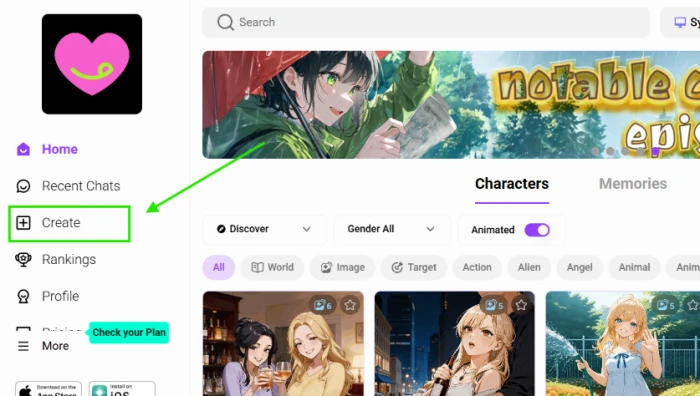
Click Create and a menu opens. This is the first place the new interface tends to surprise people, because “creating” isn't a single action anymore.
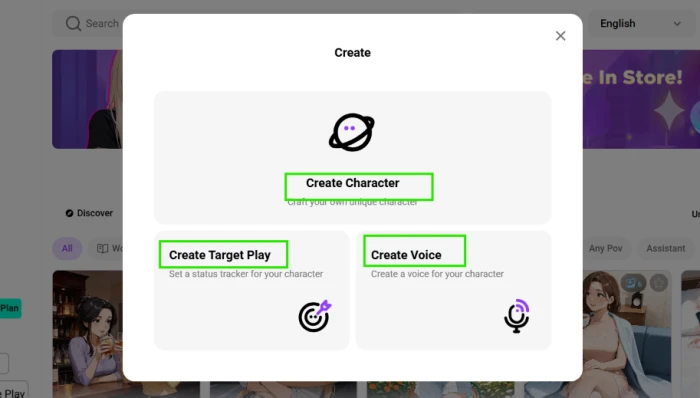
The menu splits into separate tools, and it saves confusion to know what each one builds before you pick:
| Option | What it builds |
|---|---|
| Create Character | The full persona you chat with. The main event, and the one this guide follows. |
| Create Target Play | A status tracker that rides alongside a character and follows meters like health or mood. |
| Create Voice | A custom voice you can attach to a character afterward. |
I clicked Create Character. The other two are extras you can bolt on later, and a voice slot appears inside the character builder regardless, which we'll reach in a few sections.
The photo, the one field you can't skip
Create Character drops you into a split-screen editor. Your fields fill the left side. A live preview of the character card sits on the right and updates as you type.
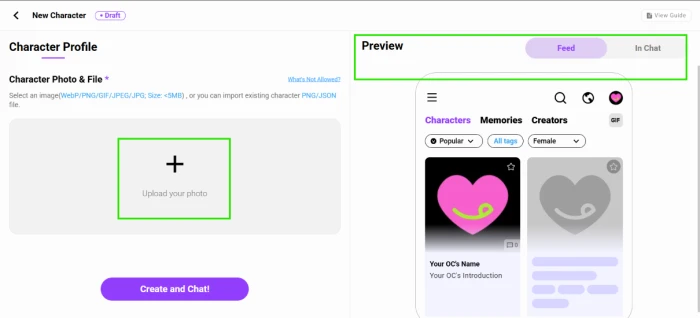
Nearly everything on this first screen is optional except one field. The photo. “Character Photo & File” carries a red asterisk, and the tool refuses to publish without it. It takes WebP, PNG, GIF, JPEG, and JPG files up to 5MB, and a small “What's Not Allowed?” link sits beside the header. Read that link before uploading, since this is an adult platform with firm rules about imagery, which I cover at the publishing step.
That preview panel earned its keep for the whole build. Every field I touched showed up in the card within a second, so I always knew how Su Lia would look to someone scrolling the feed.
The image you pick doubles as the card thumbnail and the in-chat avatar, so a clear, centered face reads better at small sizes than a busy full-body shot. There's also a “Use as scene card image” toggle here, which reuses this same photo as the chat background. I left it off, because I had a separate landscape in mind for that job.
I uploaded a portrait, and two fresh sections appeared.
Scene Card and World Card
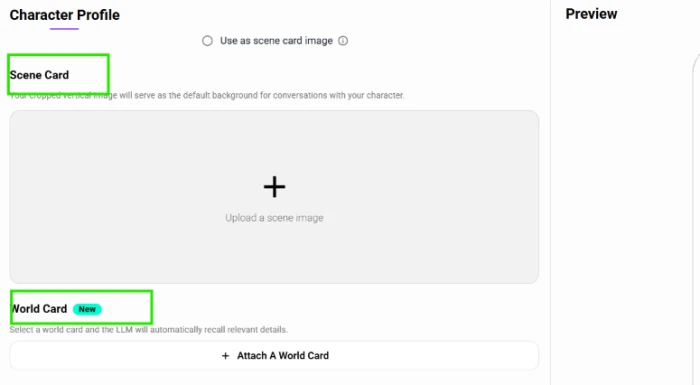
The Scene Card and World Card showed up directly under the photo.
The Scene Card is the backdrop for your chats. Whatever vertical image you crop becomes the default background behind every conversation. I dropped in a mountain landscape full of pink wildflowers.
The World Card is the newer of the two, tagged “New.” Attach one and the model automatically recalls relevant lore from it mid-conversation. For a grounded character like Su Lia I left it blank, though it earns its place if you're building inside a dense fictional universe.
Uploading the scene image asked one more question.
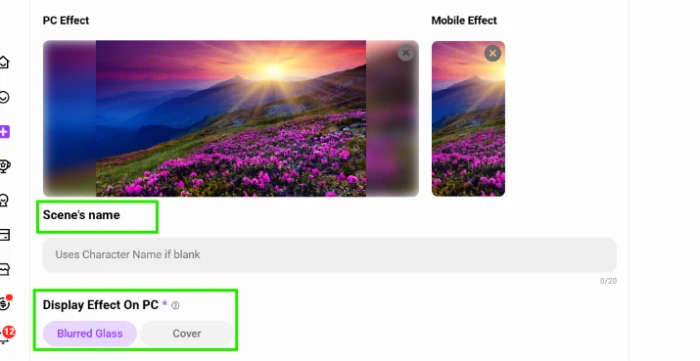
The editor now wanted a scene name and a display effect, with paired PC and mobile previews so you can judge both before committing. The name is optional and borrows the character's name when left blank. The display effect is required, and there are two:
| Effect | How it looks |
|---|---|
| Blurred Glass | The scene shows through a frosted overlay behind the chat panel. |
| Cover | The scene fills the entire background behind your text. |
I chose Blurred Glass. Backdrop settled, the editor turned to the character herself.
A voice, a name, an age
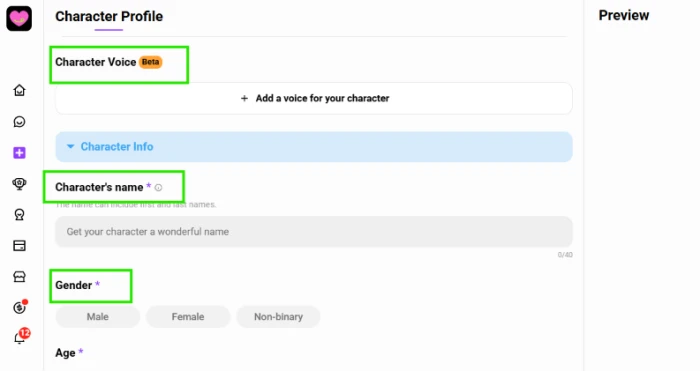
Three fields sat grouped together: a voice slot, the character's name, and a gender selector.
The Character Voice section still wears a Beta tag. Hitting “Add a voice for your character” opens a library, and it goes deeper than I expected.
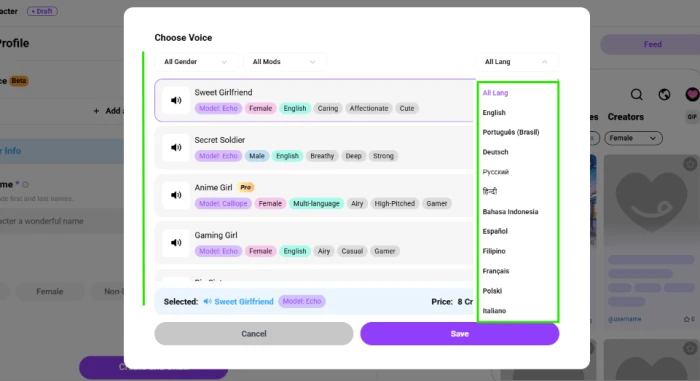
The library filters by gender and by language, with a voice-model filter alongside. The language list runs long, covering English, Português, Deutsch, Русский, and हिन्दी among others. Each voice carries a personality label, a model name like Echo or Calliope, and a per-use credit price shown along the bottom bar, with some voices marked Pro. I picked “Sweet Girlfriend,” an English voice on the Echo model, which fit the tone I wanted for Su Lia.
Credits vary by reply length and by the voice you choose, so a chatty character on a premium voice burns through them faster. Good to know before you commit a Pro voice to a character you plan to talk to for hours. If yours is text-only, skip the voice slot entirely and add one later from this same editor.
Back on the profile, name and gender are both required. The name holds first and last, up to 40 characters. For gender I could pick Male or Female, with a Non-binary option too. She became Su Lia, Female.
Then came age.
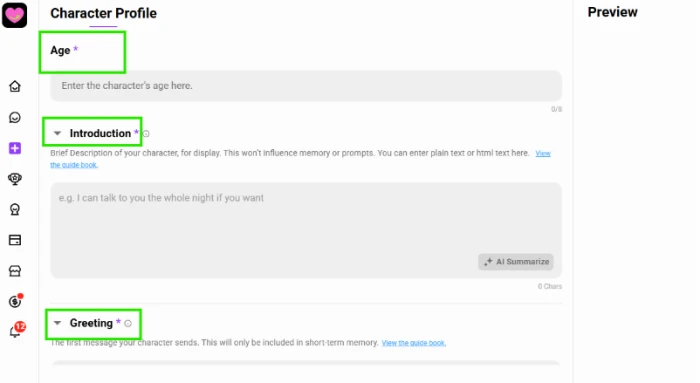
Age is required, with its own short character limit. Directly below it, the editor opened the two boxes that shape a character's first impression more than any others: Introduction and Greeting.
Introduction and Greeting, which look alike and aren't
These two fields confuse plenty of first-time builders, since they sit side by side and read similarly. They do opposite jobs.
The Introduction is a brief blurb shown on the character's card. CrushOn AI states outright that it won't influence memory or prompts. It's a shop window, nothing the model reasons over.
The Greeting is the first message your character sends when a chat opens, and this one does reach the model. It lands in short-term memory and sets the rhythm for the conversation that follows. I wrote Su Lia a warm, slightly teasing opener.
Keep that greeting in mind. At the end of this walkthrough I'll open a live chat and show you, screenshot and all, whether those exact words came back.
Personality and Appearance, the parts the model remembers
Scrolling on, the build shifts from surface details to the material the model actually works with.
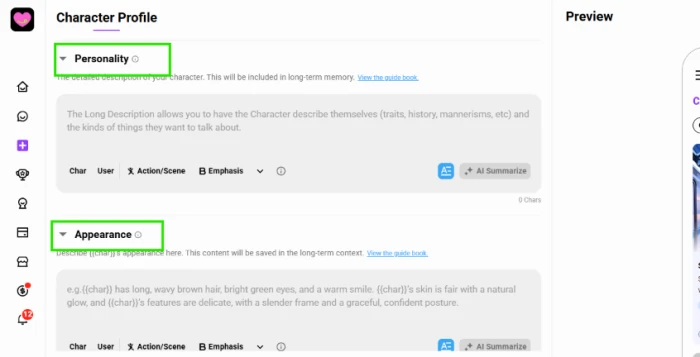
Personality and Appearance both save to long-term memory. That's the split from the Introduction I described a moment ago: what goes here persists across a whole conversation instead of decorating a card.
Each box carries a small toolbar of Char, User, Action/Scene, and Emphasis tags, plus an “AI Summarize” button that condenses a rambling bio into something tighter. A few habits made Su Lia noticeably steadier in chat:
- Write in third person and let the character describe herself.
- Give concrete traits tied to examples, not soft adjectives like “nice” or “cool.”
- Repeat the character's name inside the text so the model keeps using it.
- Keep contradictions out. A character who is “calm and explosive at all times” confuses the model and flattens her replies.
I wrote the personality box long, then hit AI Summarize to trim it to the lines that carried weight. A cluttered bio eats into memory without adding much, so tightening it up helped Su Lia stay on-voice deeper into a session.
Appearance follows the same logic. I gave her height, hair, eye color, and posture, the concrete details that keep a character recognizable across a long chat. The more specific the description, the more consistent she stayed once she was live.
Scenario, rating, tags, and visibility
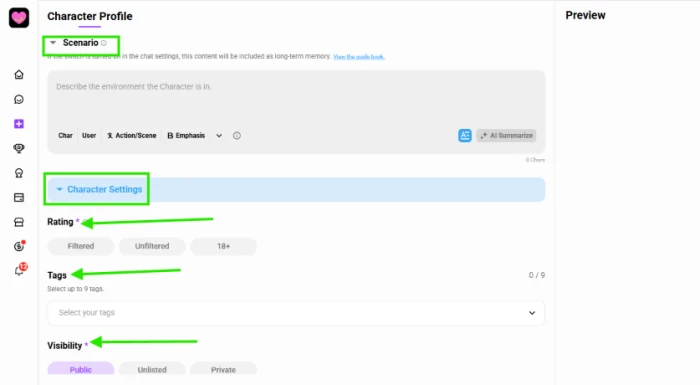
Under Appearance comes the Scenario box, then a “Character Settings” panel holding the publishing controls.
Scenario describes the environment the character occupies, and it saves to long-term memory when switched on. I kept mine deliberately short. An overloaded scenario crowds out the personality notes I'd already written, and the platform's own guides warn about exactly that.
Character Settings is where the platform's adult side becomes explicit. Rating comes in three levels:
| Rating | What it means |
|---|---|
| Filtered | Keeps content safe-for-work. |
| Unfiltered | Loosens the content restrictions. |
| 18+ | Permits mature content, adults only. |
This single setting decides how far into mature territory the character can go, so I set it with intent rather than clicking through on autopilot.
Tags come next, up to nine of them, and they decide who finds your character in the feed. Nine is the ceiling, and the feed leans on tags heavily, so I spent a minute choosing terms people actually browse instead of stuffing all nine slots for the sake of it. Visibility closes out the panel with three choices. Public pushes the character to the community catalog. Unlisted keeps it off the feed while still reachable by a direct link. Private keeps it to you alone.
I set Su Lia to Public. That loops straight back to the age-gate note from sign-in: a public character lands in a catalog anyone on an 18+ platform can browse, so I only publish what I'm fine having seen.
Enhanced Settings and the example conversation
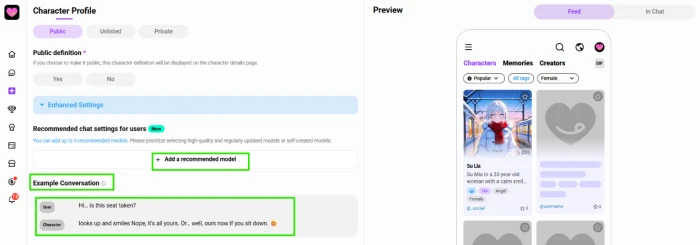
Below Character Settings, an “Enhanced Settings” panel unfolds. Two controls here shape how the character behaves.
The first is “Recommended chat settings for users,” where you pin up to three models you think suit your character best. Anyone opening a chat starts on one of them instead of guessing.
The second is the one I cared about most: Example Conversation. This is a sample exchange that teaches the model how your character speaks. I typed in a short one:
User: Hi… is this seat taken?
Character: looks up and smiles Nope, it's all yours. Or… well, ours now if you sit down. 😊
I planted this as a test. If the example conversation does its job, Su Lia should field a “is this seat taken?” opener in close to this voice once she's live. The proof comes at the end of the article.
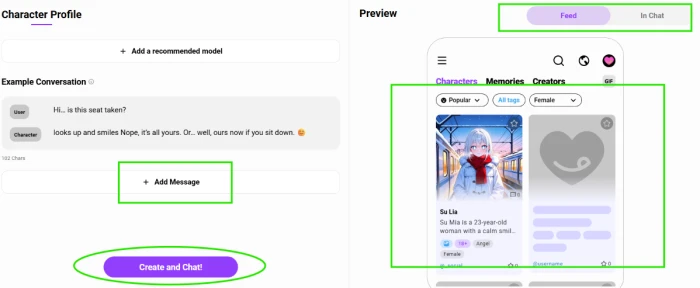
“Add Message” lets you stack more than one example, so the character can demonstrate different reactions. The preview on the right kept toggling between Feed and In Chat views, handing me the finished card before I ever published. Everything filled in, I pressed “Create and Chat!”
Publishing, and the two popups on the way out
Publishing didn't happen in one click. Two screens stood in the way first.
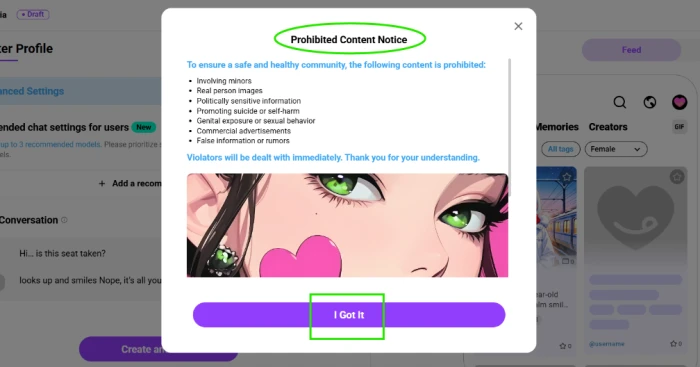
The first was a Prohibited Content Notice. Adult platform or not, CrushOn AI draws hard lines, and it spells them out here:
- Involving minors
- Real person images
- Politically sensitive information
- Promoting suicide or self-harm
- Genital exposure or sexual behavior
- Commercial advertisements
- False information or rumors
You acknowledge it with “I Got It.” Read it rather than clicking past, since the notice says violations get handled immediately.
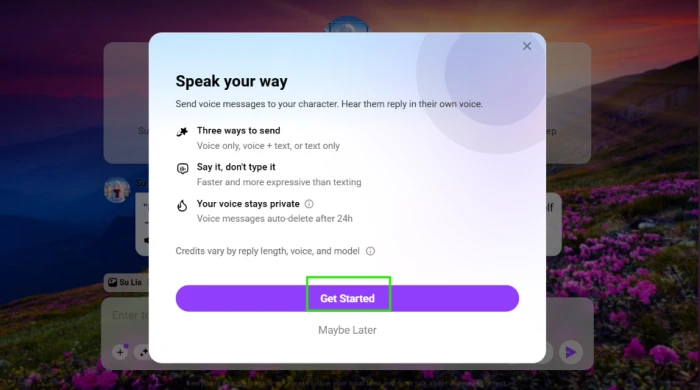
The second popup, “Speak Your Way,” introduced voice messaging: the ways you can send a voice reply and the fact that voice messages auto-delete after 24 hours. I clicked “Get Started.”
With that, Su Lia was published.
The test, did any of it stick?
This is the moment I built the whole character around.
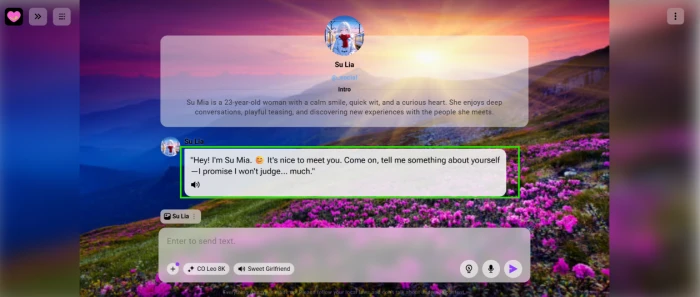
The chat opened on Su Lia's first message, and it matched the Greeting I wrote earlier, word for word. Her “Intro” sat at the top of the screen, pulled straight from the Introduction field, behaving exactly as promised back in the greeting section: display only, no surprises. The labeled fields did what their labels said.
Then the real check.
I sent her the same line I'd seeded into the example conversation: “Hi… is this seat taken?”
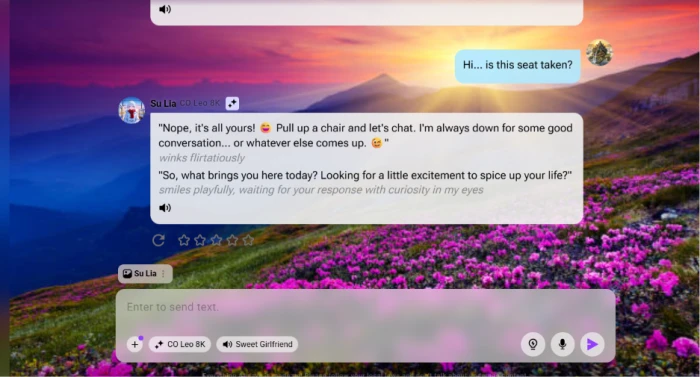
Her reply came back: “Nope, it's all yours! Pull up a chair and let's chat…,” rolling into a flirty aside and a question of her own. She hadn't copied my sample lines. She'd matched the voice underneath them, the same warmth and the same teasing rhythm I'd written into that exchange. The example conversation had taught her tone rather than a script.
If your own character comes out flat, the fix almost always lives in two boxes: Personality and the example conversation. Those are the ones the model leans on hardest. The rest is presentation, and presentation is the quick part.
One last lever worth knowing: swapping the chat model changes her delivery without touching a single field you just filled in. The same Su Lia, same backstory, same greeting, reads cooler on one engine and warmer on another. If a character feels almost right, try a different model before you rewrite anything.
Final Verdict
Building a character on CrushOn AI took me under fifteen minutes, and most of that went into writing the personality box, not hunting for buttons. The flow is linear, the live preview means you never publish blind, and the fields do what their labels say: the Greeting and example conversation shape the chat while the Introduction stays cosmetic.
Watch for the rough edges. Voice is still in Beta and spends credits on every reply, and long storylines can drift across sessions, so a sharp personality box carries more weight than the memory system.
My take after building Su Lia from a blank draft: the tool is more capable than the older guides suggest, and it rewards precision over volume. Write less, write it exactly, and the character sounds like someone you designed on purpose.



Comments 0
Join the discussion and share your perspective.
Sign in to post a comment and reply to other readers.
No comments yet
Be the first to share your perspective on this article.