Candy AI - Chat Experience and Verdict
1: Landing page
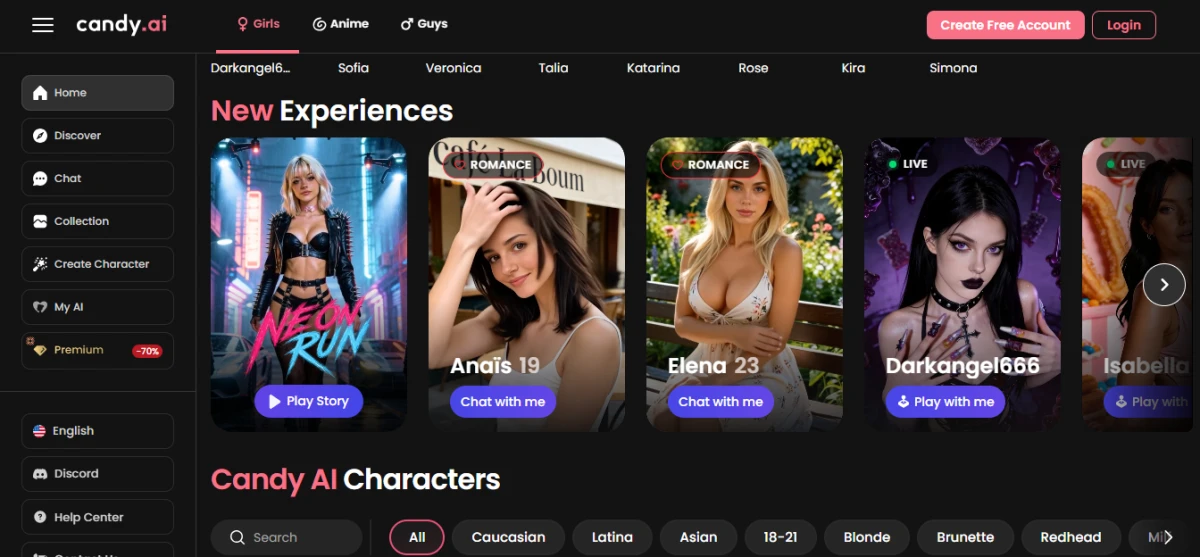
I started on the homepage, which dropped me straight into a gallery of AI characters each with an avatar, a name, and a one-line personality blurb. They were sorted into categories and filters, so I could browse by style, personality, or theme before committing to anything. The layout looked polished and the main navigation (chat, collection, create character, premium) was right there up front. At this stage it was browse-only, but it made a strong first impression.
2: Signing up
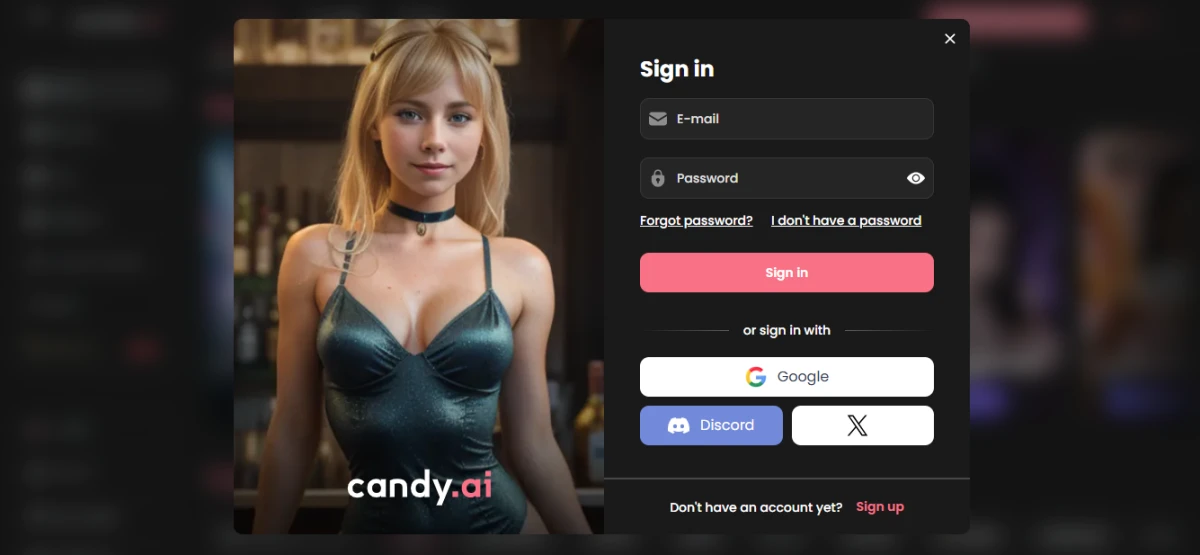
Before I could actually do anything, I hit a sign-up gate. I could register with an email and password, or take the faster route through Google, Discord, or X. The page was clean and minimal, but it was clearly there to lock things down the chat and media tools stayed out of reach until I'd created and verified an account.
3: Starting a chat
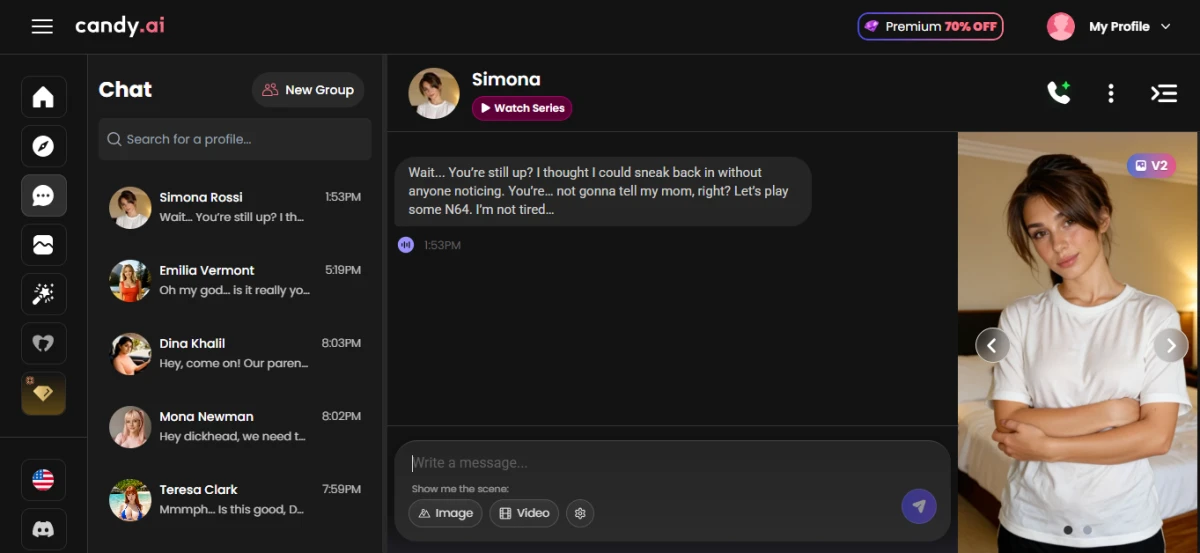
Once I was in, I picked a character and opened the chat. This is the part the whole thing is built around, and it felt familiar immediately basically a messaging app. I typed, the character replied in character, and the conversation adapted to what I said. There was no learning curve; I just started talking.
4: Trying the media tools
I noticed the image and video options sitting right under the message box, so I tried generating visuals mid-conversation. I liked that I didn't have to leave the chat to do it text and media were blended into one flow, and I could request a picture or short clip on the fly.
5: Hitting the free limit
This is where it turned. After only a handful of messages and a couple of media requests, an upgrade pop-up appeared. Unlimited messaging, AI video, custom character creation, image blur removal, and the monthly token allowance were all locked. It became obvious the free version was a preview, not the real thing.
6: The paywall
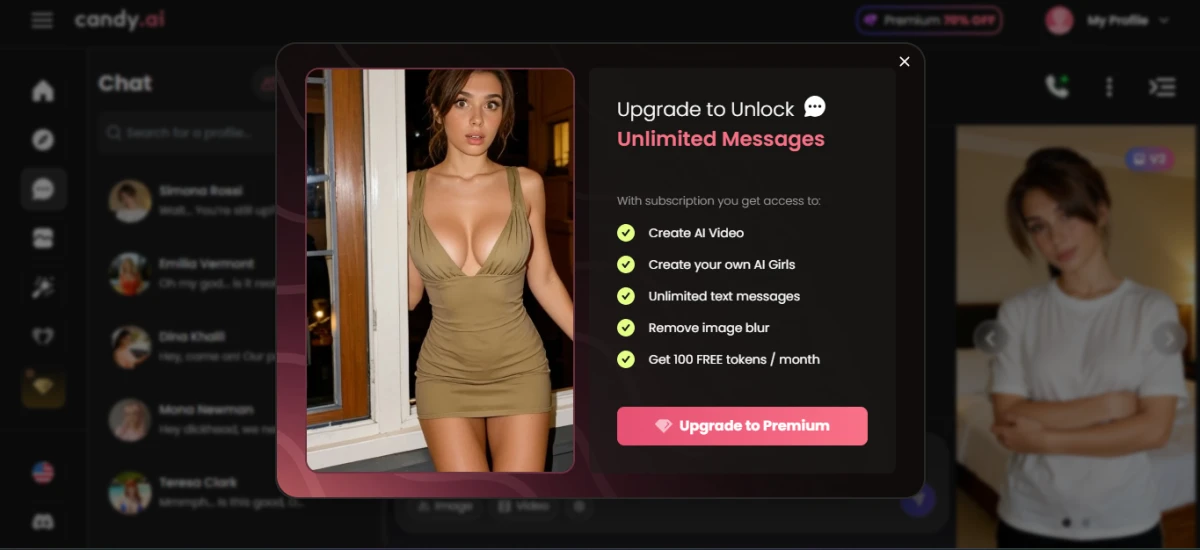
When I tried to keep going, the deeper experience longer conversations and full image and video generation was all gated behind a paid subscription. Browsing and sampling were free, but using the platform for real clearly meant paying. After such a smooth start, this was where it deflated.
What I liked
- Getting in was effortless the character gallery was right there and easy to browse before signing up.
- The interface was polished and the chat felt instantly familiar, like any messaging app.
- Media generation lived inside the chat, so requesting an image or video mid-conversation was seamless.
- It was genuinely enjoyable to sample before the limits kicked in.
What I disliked
- The free experience was thin only a handful of messages before the wall came up.
- The upgrade prompts were constant and interrupted the flow rather than letting me settle in.
- Almost everything that makes the platform appealing unlimited chat, video, custom characters was locked behind the subscription.
- The polished start built up an expectation the free version never delivered on, so it ended up feeling more like bait than a usable product.