MagicLight AI - Hands on Testing of Story to Video Feature
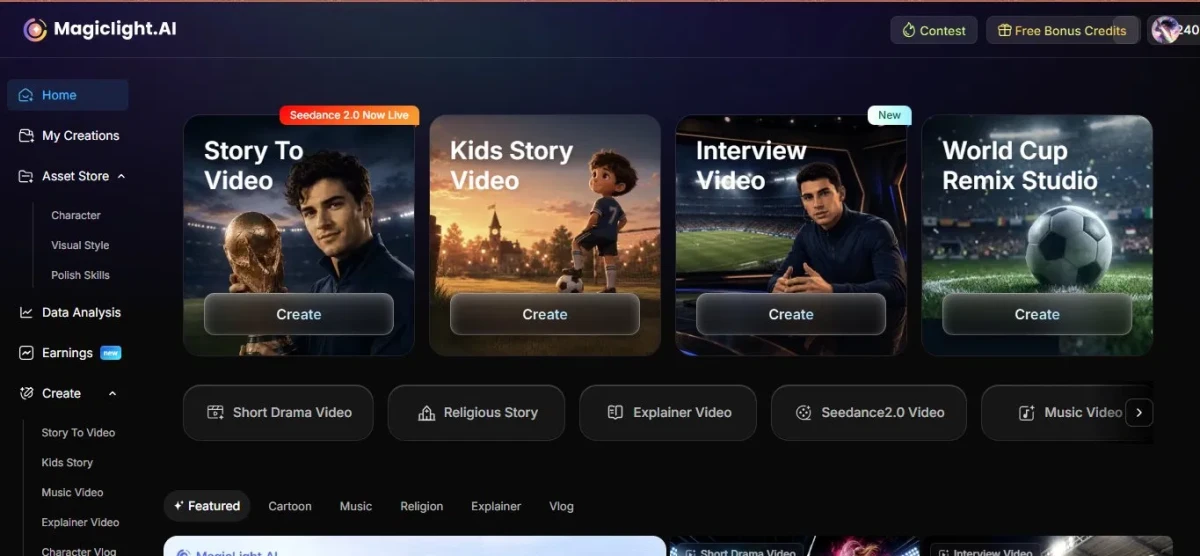
1. Landing on the dashboard. Opening Magiclight.AI reveals a clean, dark dashboard stacked with options Story To Video, Kids Story Video, Interview Video, and a World Cup Remix Studio all sitting up front. A left sidebar lays out Home, My Creations, Asset Store, and Create in a tidy column. First impression: surprisingly uncluttered for a tool this feature-heavy.
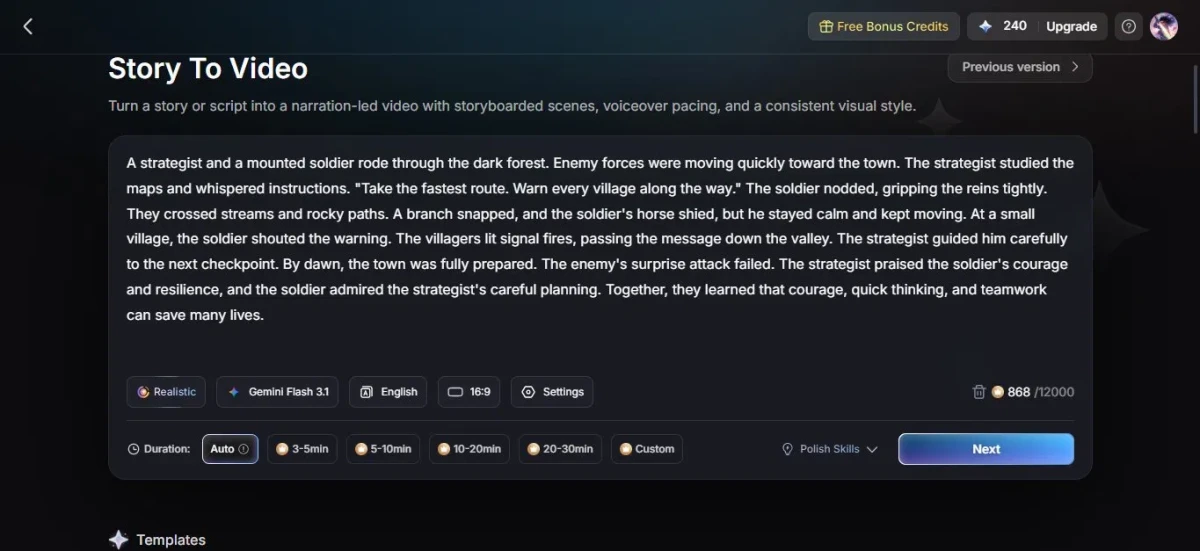
2. Choosing Story To Video and dropping in a script. Selecting Story To Video collapses the whole interface down to a single text box. A sample tale a strategist and a mounted soldier riding through a dark forest to warn villages ahead of an enemy attack fills the field, ideal for a quick test. Underneath sit the controls: Realistic style, Gemini Flash 3.1 as the engine, English, 16:9 framing, and duration presets running from 3–5 minutes up to Custom. The 868/12000 character counter quietly signals plenty of headroom. A tap on Next starts the process. Small thought: feeding a finished story rather than a bare prompt feels more deliberate, more in command of the outcome.
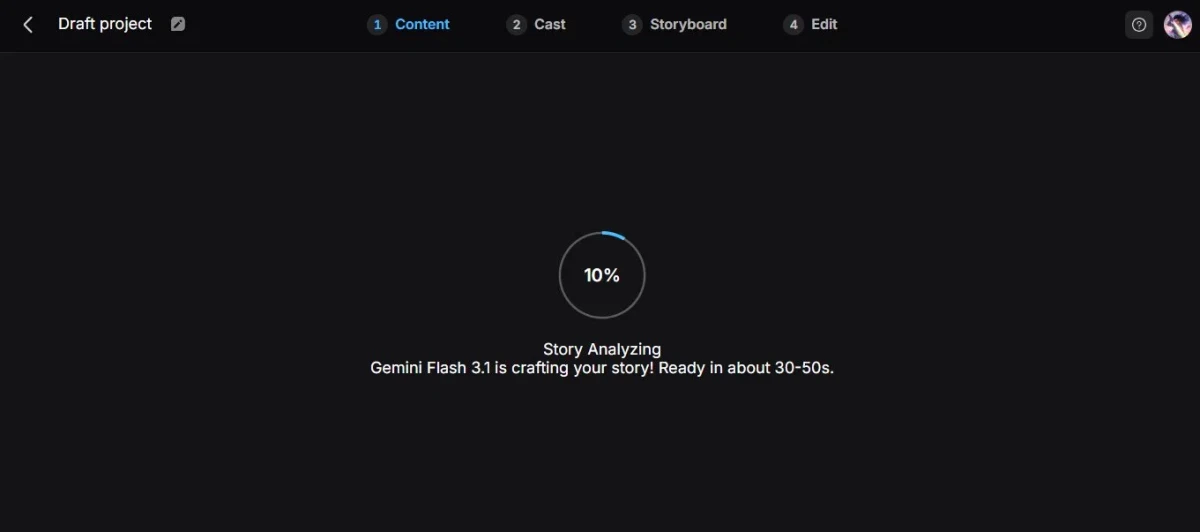
3. Watching the analysis run. Hitting Next swaps the screen for a four-step tracker across the top Content, Cast, Storyboard, Edit with a circular progress ring spinning at 10%. The caption reads "Story Analyzing," promising a finished draft in roughly 30–50 seconds while Gemini Flash 3.1 crafts the structure. Reaction: that visible four-stage roadmap takes the guesswork out of what comes next.
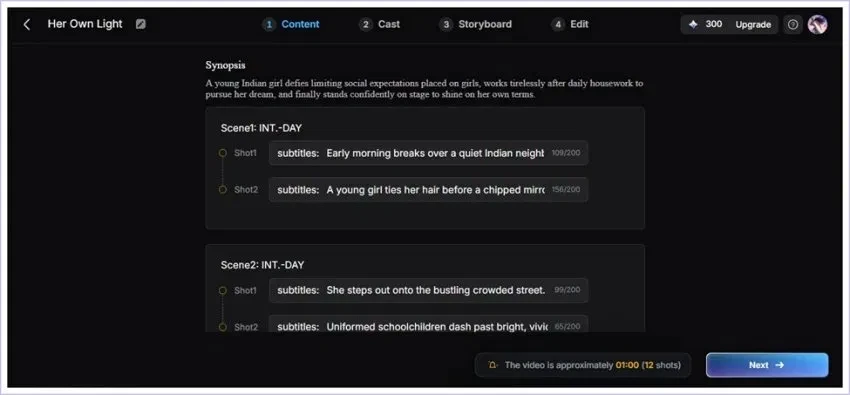
4. Reviewing the scene-and-shot breakdown. Once analysis finishes, the story arrives fully broken down. A Synopsis sits up top, then Scene 1, Scene 2, and onward every scene split into shots, every shot carrying a subtitle line and a small character count. A footer estimate pegs the piece at roughly 01:00 across 12 shots. Standout moment right here: watching a flat block of text reorganize into a proper shot list reads as the first real "this works" beat.
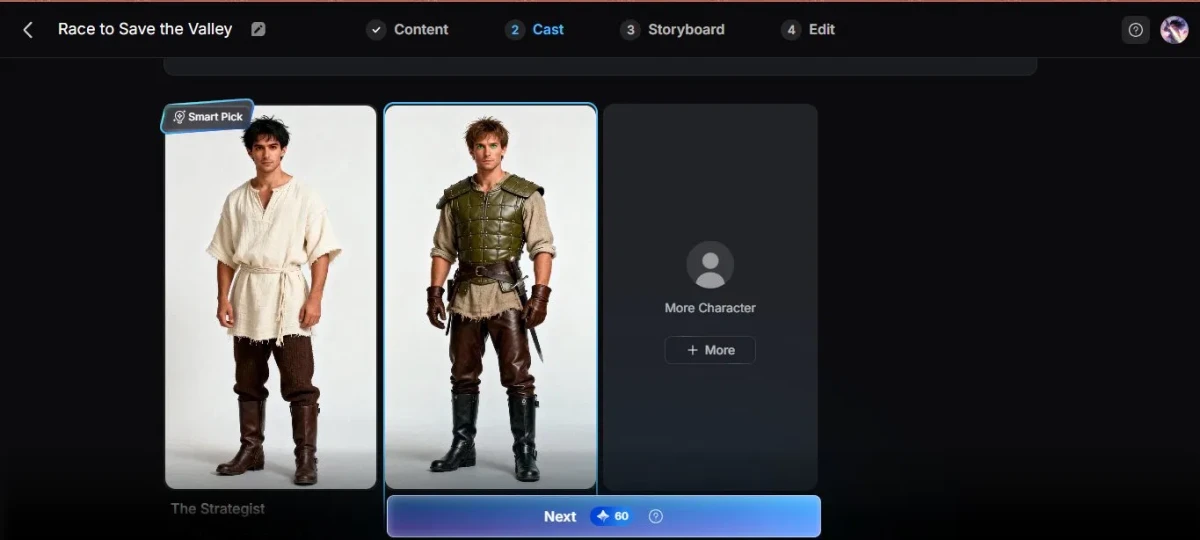
5. Casting the characters. The Cast step generates characters straight from the story. For the strategist role, two distinct figures appear one tagged Smart Pick alongside a More Character slot for extra options. Each design lands period-appropriate and oddly specific, right down to the leather armor and worn boots. Quiet appreciation: pulling cast looks directly from the narrative, rather than demanding manual descriptions, saves real effort.
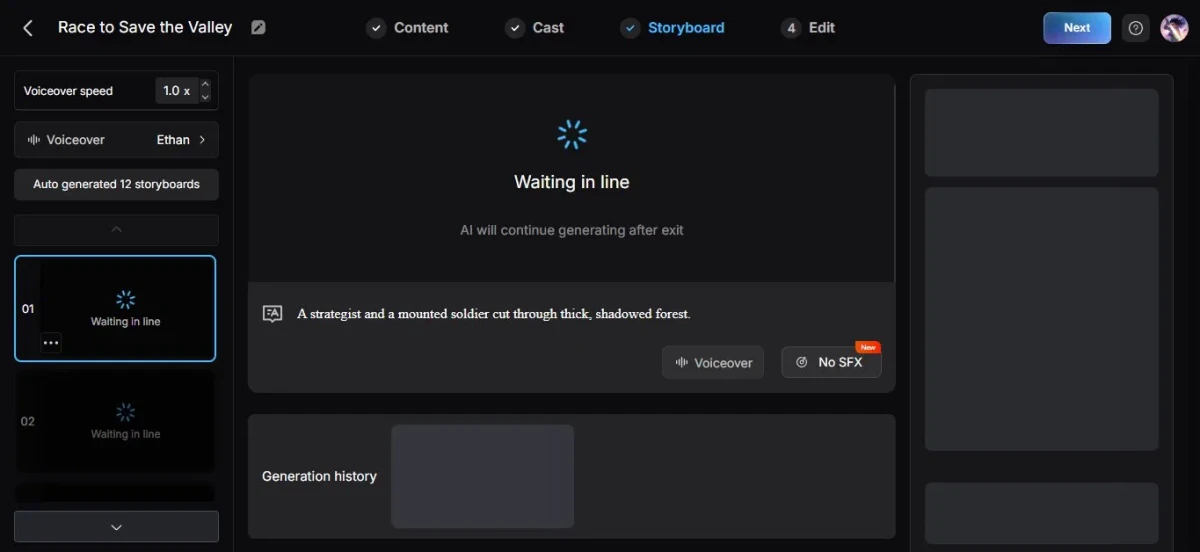
6. Building the storyboard. The Storyboard step is where the story starts becoming video. A left panel holds 12 auto-generated storyboards, voiceover controls (Ethan as the voice, speed at 1.0x), and per-shot options like Voiceover and No SFX. Frames show "Waiting in line," with a note that generation keeps running even after leaving the page a real plus for longer pieces. Final thought: rendering quietly in the background, with nothing left to babysit, turns a slow process into a walk-away task.
Magiclight.AI makes a strong first impression because the whole Story To Video flow feels smooth, guided, and easy to follow. The dashboard is clean, the script input is simple, and the step-by-step process from analysis to cast and storyboard gives the user enough control without making the workflow feel complicated. The best part is how quickly it turns a written story into scenes, shots, characters, and voiceover-ready storyboards.
The only unclear part is the final output generation time. While the analysis stage gives a rough 30–50 second estimate, the actual video rendering time is not clearly shown once the storyboard begins generating. That makes the experience feel slightly incomplete, especially for longer videos. Still, as a story-to-video creation tool, the process feels beginner-friendly, organized, and surprisingly smooth.