
Originality.ai - Detection Testing
1: Opening the site
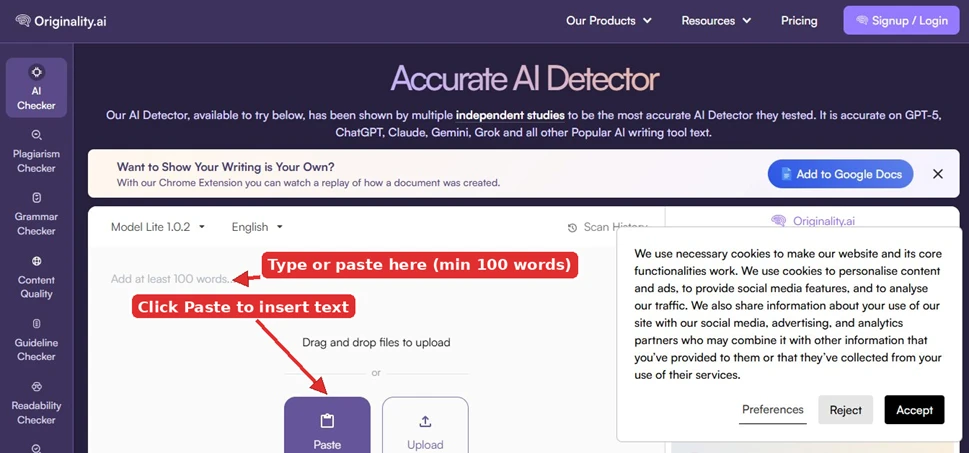
The AI Checker was already selected the moment I landed, so there was nothing to set up. On my first visit a cookie notice appeared on the right, which I cleared with Accept or Reject. The detector laid everything out plainly: a model selector and a language selector at the top, a large text box in the middle, and Paste and Upload buttons at the bottom. One thing I noted up front is that the scan needs at least 100 words.
(Image 1 below: the homepage, with arrows marking the text area, the 100-word minimum, and the Paste button.)
2: Pasting text and running the scan
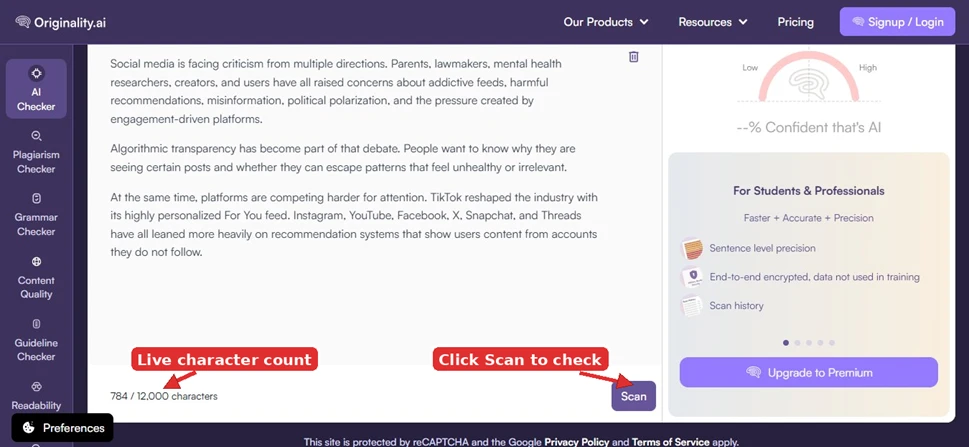
I clicked Paste, then watched the character count appear at the bottom of the box. My text came to 784 of the 12,000 free characters. Once it was in, I clicked Scan on the bottom right. The panel on the right showed the score gauge, which read as dashes until the scan ran, along with a short list of features.
Here's the text I used:
Social media is facing criticism from multiple directions. Parents, lawmakers, mental health researchers, creators, and users have all raised concerns about addictive feeds, harmful recommendations, misinformation, political polarization, and the pressure created by engagement-driven platforms.
Algorithmic transparency has become part of that debate. People want to know why they are seeing certain posts and whether they can escape patterns that feel unhealthy or irrelevant.
At the same time, platforms are competing harder for attention. TikTok reshaped the industry with its highly personalized For You feed. Instagram, YouTube, Facebook, X, Snapchat, and Threads have all leaned more heavily on recommendation systems that show users content from accounts they do not follow.
(Image 2 below: the text pasted in, with the live character count showing how much I had entered.)
3: Read the result
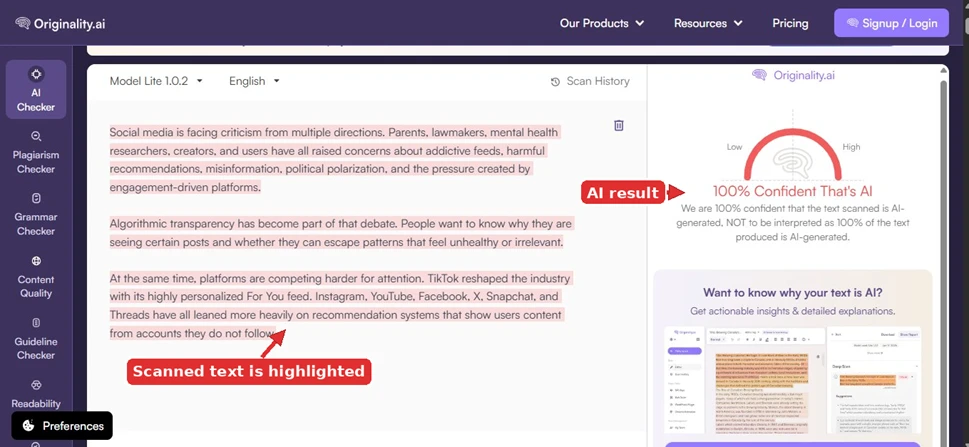
The result came back right away, with no waiting. The gauge filled in and showed a confidence score. In my test it read 100% Confident That's AI, meaning the tool was fully confident the scanned text was AI generated. As the site itself points out, that is not the same as saying 100 percent of the words are AI; it is the confidence level of the verdict. The scanned text was highlighted, so I could see exactly what had been analyzed.
(Image 3 below: the result, reading 100% Confident That's AI, with the scanned text highlighted.)Image 3: The result. The score reads 100% Confident That’s AI, and the scanned text is highlighted.
4: Deep Scan and the other tools (login needed)
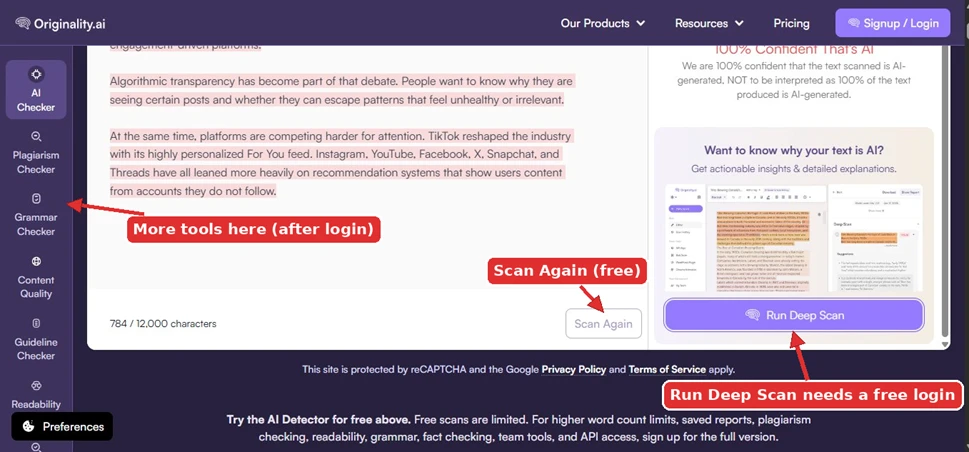
Below the result were two buttons. Scan Again repeated the basic scan and did not need an account. Run Deep Scan, which gives sentence-level detail and fuller explanations, required a free signup. The left sidebar listed the other tools Originality offers, including Plagiarism, Grammar, Content Quality, Guideline, and Readability checkers, and these also sat behind a login. The note at the bottom summed it up: the free scan is limited, and higher word counts, saved reports, plagiarism checking, readability, grammar, fact checking, team tools, and API access all come with the full version.
(Image 4 below: after the scan, with Scan Again free while Run Deep Scan and the sidebar tools need a free account.)
What worked well
- The AI Checker was ready the instant I landed, so I could scan with no setup.
- The basic scan ran without an account, and I could rerun it freely with Scan Again.
- The verdict came back instantly, with no wait for the gauge to fill.
- The live character count and the highlighted scanned text made it clear exactly what was being checked.
- I could copy both my text and the verdict straight into a document.
Where it fell short
- The scan needs at least 100 words, so very short snippets cannot be checked.
- The free scan is capped (12,000 characters in my test) and does not save reports.
- Almost everything beyond the basic scan sits behind a login: Deep Scan, plus the Plagiarism, Grammar, Content Quality, Guideline, and Readability tools.
- The 100 percent confidence verdict is easy to misread as "every word is AI," when it only means the tool is fully confident in its overall call.