QuillBot - Real Testing And Output
1: Opening the site
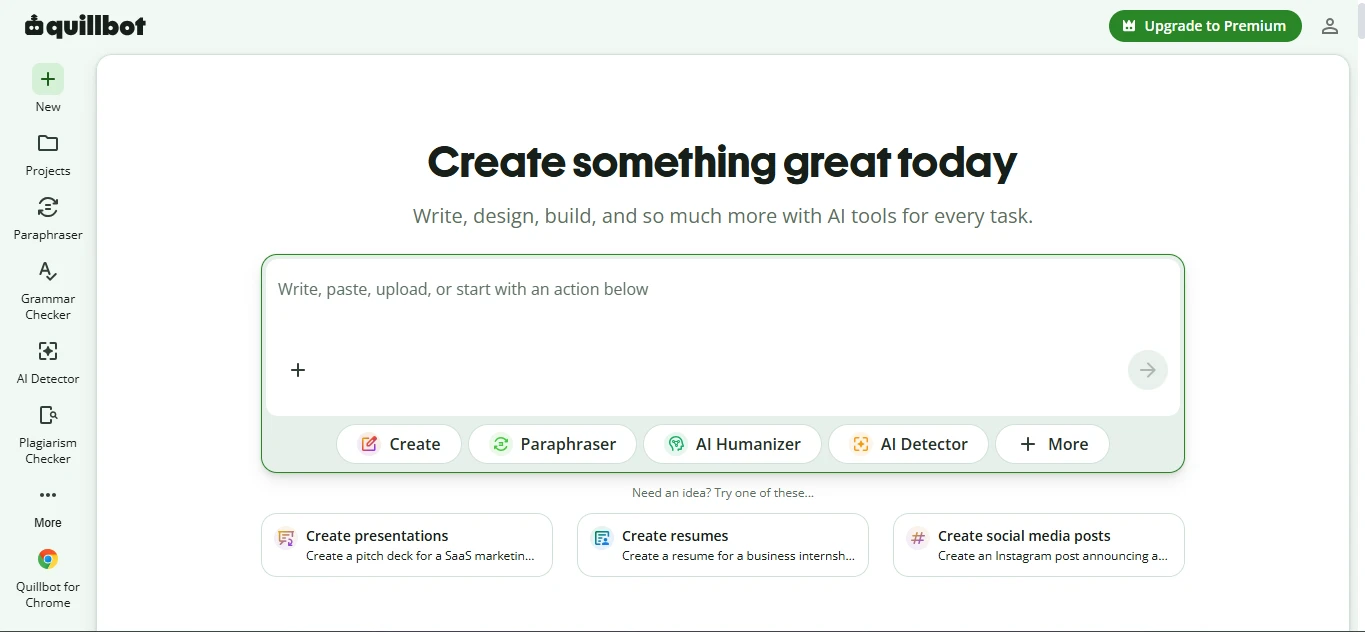
QuillBot dropped me straight onto the main dashboard, with no popup forcing me to sign in first, so I could get going immediately. In the middle was a text box prompting me to "Write, paste, upload, or start with an action below," with quick action buttons right underneath: Create, Paraphraser, AI Humanizer, and AI Detector. It was clear from the first screen what the tool could do.
(Image 1 below: the landing page.)
2: Pasting in my paragraph
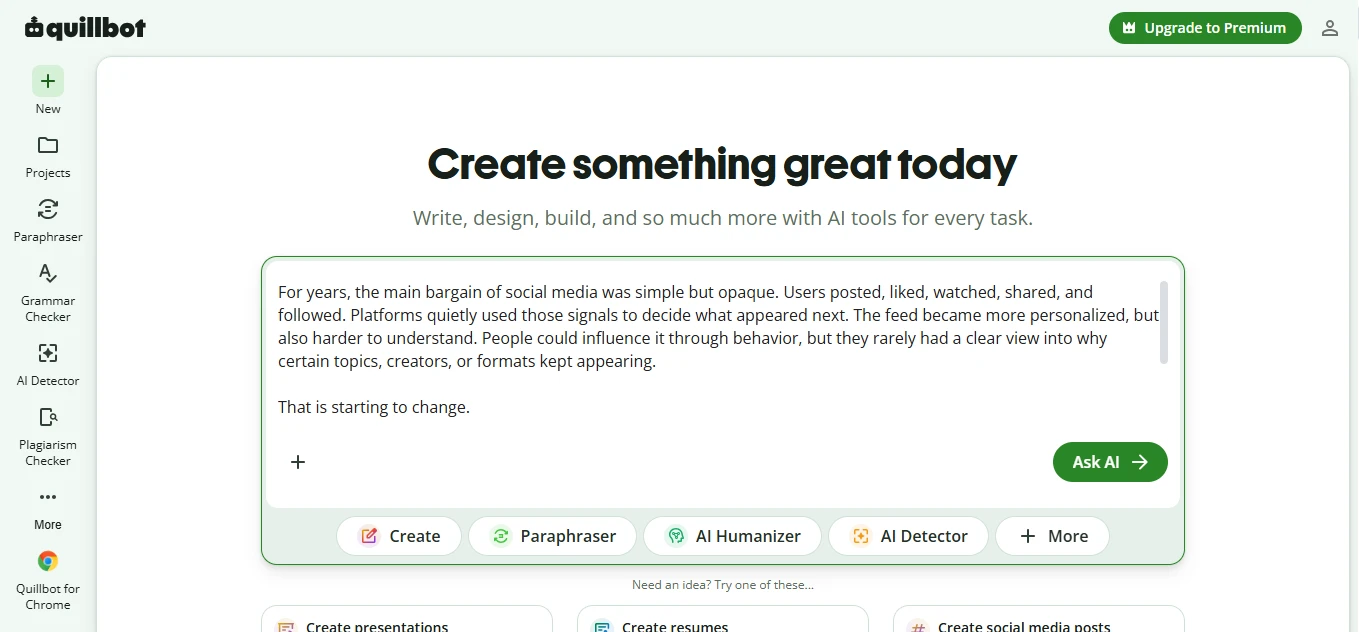
I clicked into the text box and pasted the paragraph I wanted to work on. The moment the text went in, the placeholder vanished and an "Ask AI" button appeared on the right. The action buttons (Create, Paraphraser, AI Humanizer, AI Detector, More) stayed visible along the bottom, so I could pick what to do next without hunting for anything.
Here's the paragraph I used:
For years, the main bargain of social media was simple but opaque. Users posted, liked, watched, shared, and followed. Platforms quietly used those signals to decide what appeared next. The feed became more personalized, but also harder to understand. People could influence it through behavior, but they rarely had a clear view into why certain topics, creators, or formats kept appearing.
That is starting to change.
Instagram's new "Your Algorithm" tool lets users see the topics influencing their recommendations and adjust them across Feed, Explore, and Reels. The tool first appeared for Reels in late 2025 and has now expanded more broadly across the app. It gives users a clearer way to shape what Instagram thinks they want to see.
(Image 2 below: the paragraph pasted in, with the available options.)
3: Choosing an action
With the text in, QuillBot offered several things I could do with it. I went with Paraphraser.
4: Review the paraphrased output
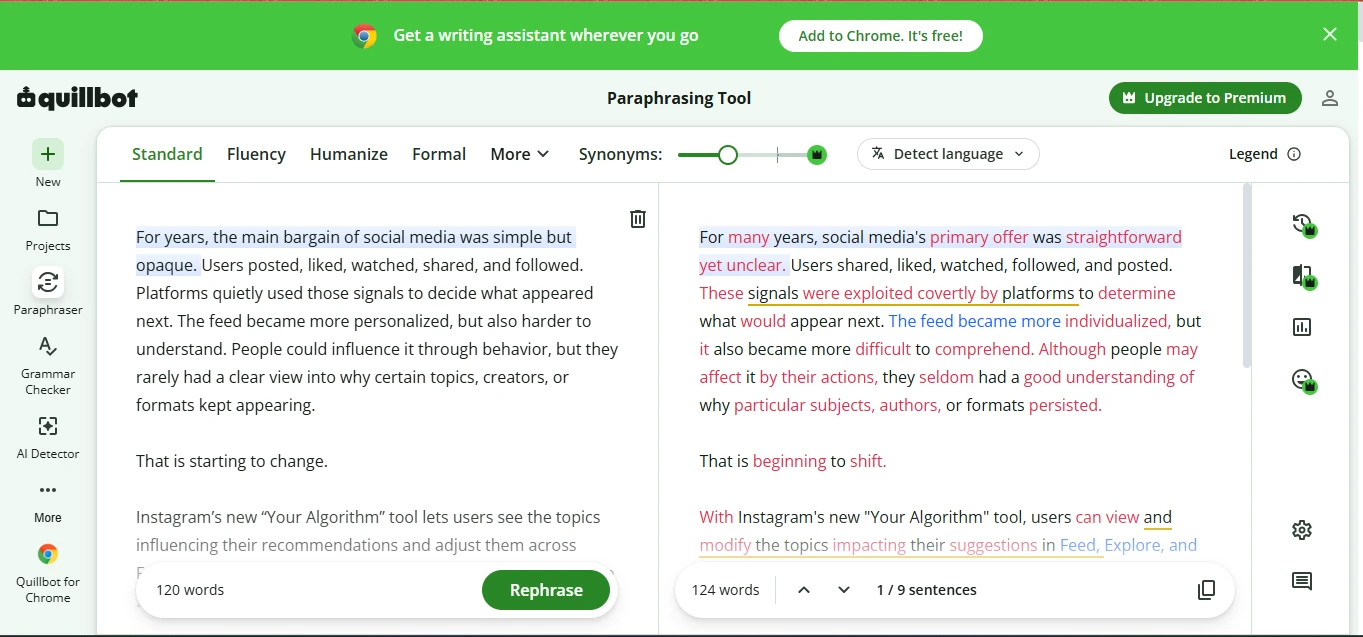
Clicking Paraphraser opened the Paraphrasing Tool. My original sat on the left and the reworded version appeared on the right, with the changed words highlighted so I could see exactly what it had touched. Across the top were different modes to try (Standard, Fluency, Humanize, Formal, and More), plus a Synonyms slider to control how many words got swapped and a Rephrase button to run it again. In my test, the original 120 words came out as 124 words across 9 sentences.
(Image 3 below shows the Paraphrasing Tool with the original and reworded text side by side.)
5: Copying it out
Once I was happy with the result, I used the copy button at the bottom right of the output. It pasted cleanly straight into a document, and I never had to log in to do any of it.
What stood out
- I could start instantly, with no sign-in wall before touching the tool.
- The first screen made the options obvious, so I knew what I could do right away.
- The side-by-side view with changed words highlighted made it easy to see exactly what had been reworded.
- There was plenty of control: multiple modes, a synonyms slider, and a rephrase button to try again.
- I could copy the result and use it anywhere without ever logging in.
What could be better
- The paraphrased version came out slightly longer than the original (124 vs 120 words), so it didn't tighten the writing.
- With several modes plus the slider, it took a little trial and error to land on the version I actually wanted.
- The highlighted changes still needed a human read-through to make sure the meaning held up.