ZeroGPT - Testing And Output
1: Opening the site
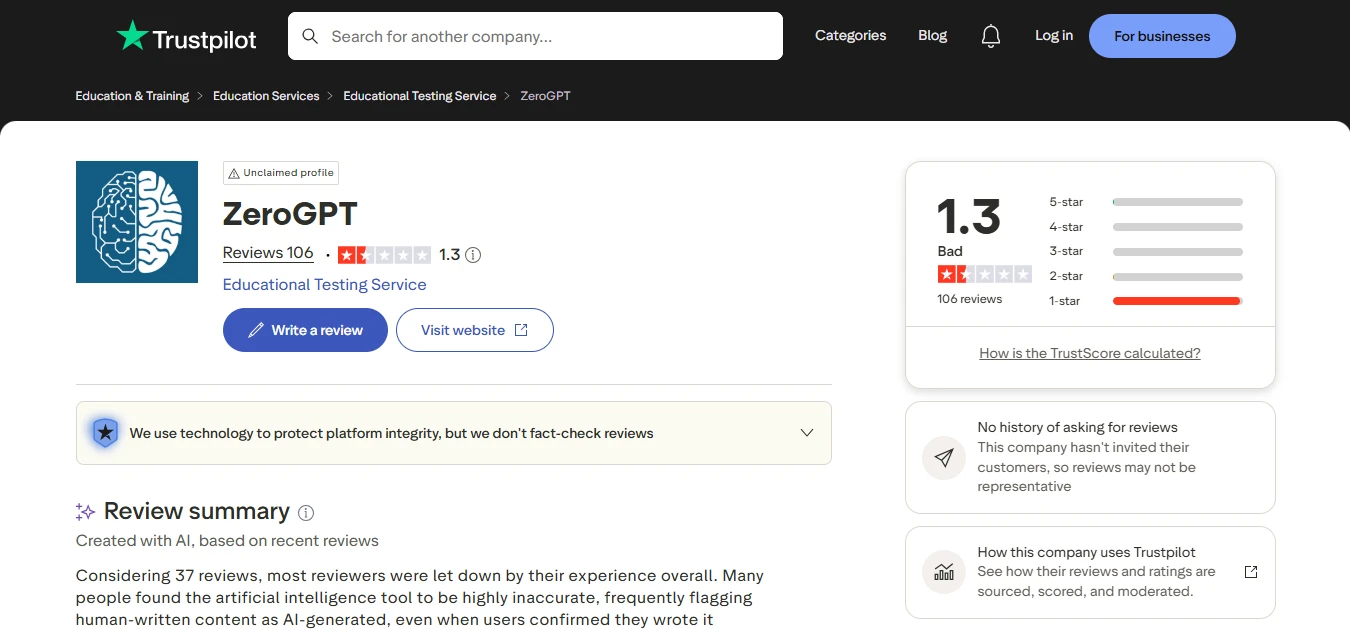
I opened ZeroGPT and the AI Text Detector loaded by default. A large text box sat in the middle of the page prompting me to type or paste my text, with a blue Detect Text button just below it, an Upload File option beside it, and a character counter on the right. I noted the free check allows up to 15,000 characters at a time, and that I didn't need an account or login to run the basic check.
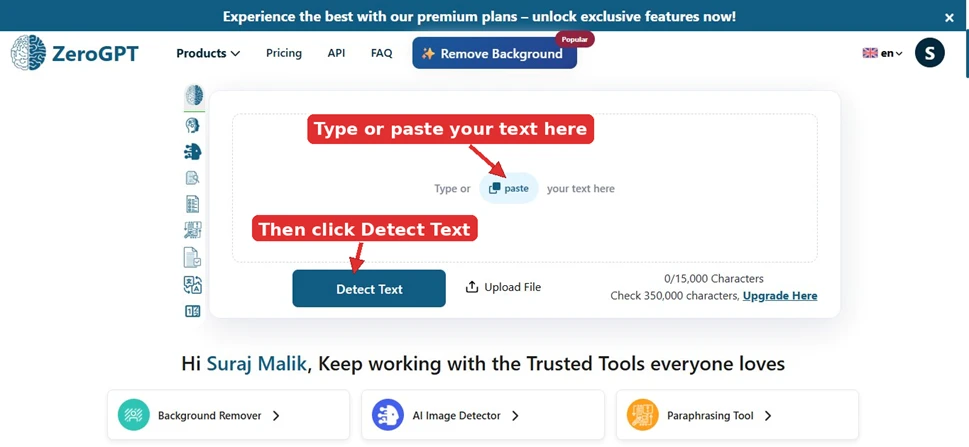
Image 1: The landing page. The arrows mark where your text goes and the Detect Text button you will use.
2: Running the check
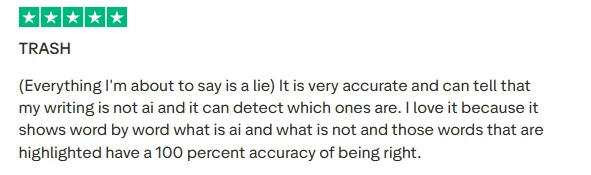
I clicked inside the box and pasted the text I wanted to check. As I added it, the character counter updated in real time, and my pasted paragraph came to 603 of the 15,000 free characters. This is the text I ran through it:
Instead of only guessing what the app has learned from their behavior, users can now view topics that affect recommendations and make changes. That gives people a more direct way to correct the feed when it starts showing too much of something or when their interests change.
This is important because social feeds often learn from short-term behavior. A user may watch a few fitness videos, political clips, celebrity edits, or shopping posts out of curiosity, then see the platform push more of the same content for days or weeks. Over time, the feed can drift away from what the user actually wants.
With the text in, I clicked Detect Text to start the scan.
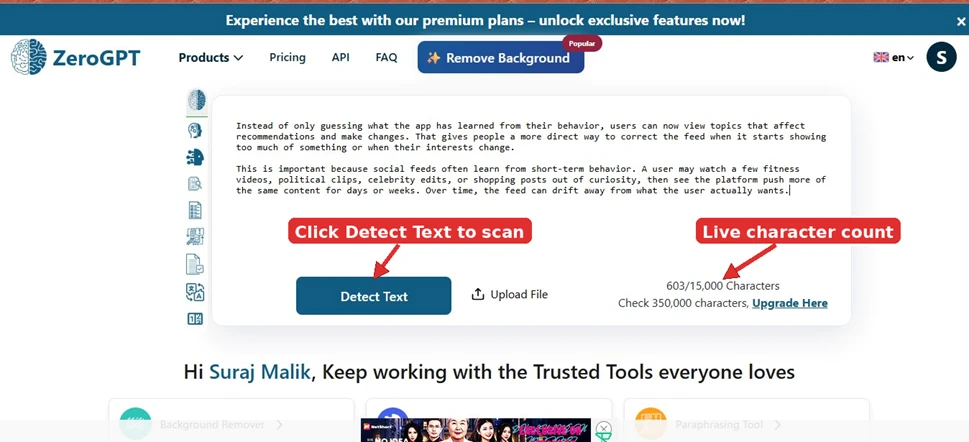
Image 2: The text pasted in. Click Detect Text, and the live character count tracks how much you have entered.
3: Reading the result
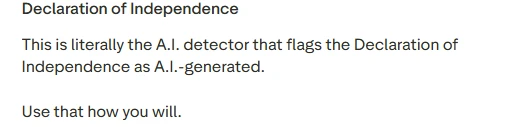
ZeroGPT returned a result in a few seconds. At the top it gave a plain summary, in this case that the text is most likely human written but may include parts generated by AI. A gauge showed the AI probability score, which came out to 38.8 percent for my sample. Below the gauge, the sentences it believed were AI generated were highlighted in yellow, so I could see exactly which parts were flagged. A Humanize Text button also appeared, an optional tool that rewrites the flagged text to sound more human, though I didn't need to use it to read my result.
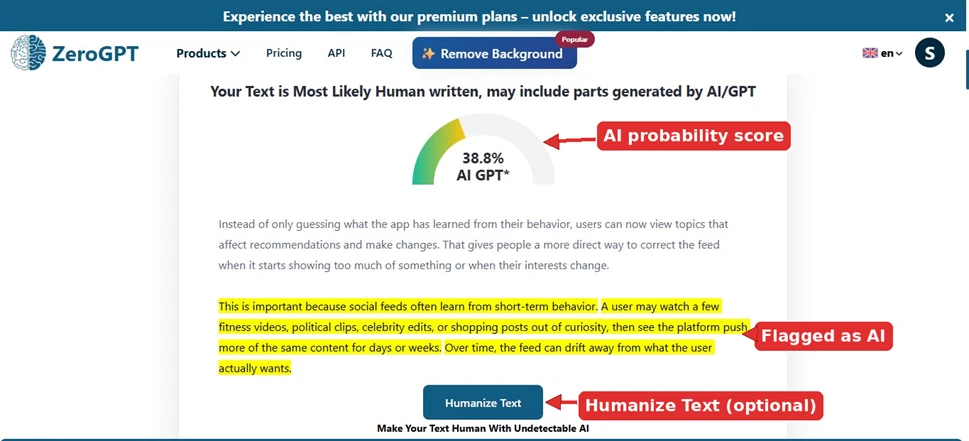
Image 3: The result screen, showing the AI probability score, the flagged sentences, and the optional Humanize Text button.
What worked for me
- No login needed: the basic check ran without an account, so I was scanning within seconds of landing on the page.
- The free allowance was reasonable, covering up to 15,000 characters per check, which is plenty for most short pieces.
- The character counter updated live as I pasted, so I always knew where I stood (603 of 15,000 here).
- The result came back fast, in just a few seconds.
- The output was clear and readable: a plain-language summary, a probability gauge, and yellow highlights showing exactly which sentences got flagged.
- I liked that it framed the verdict honestly, calling the text most likely human written but possibly part AI rather than forcing a hard yes or no.
- I could copy both my text and the result into any document I wanted.
What I'd flag
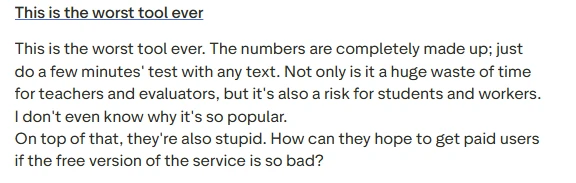
- The percentage is an estimate, not proof. ZeroGPT says as much itself, so I wouldn't treat 38.8 percent as a real verdict on whether something was AI written.
- The reliability gave me pause: a text it called most likely human still scored 38.8 percent with sentences flagged, so I'd be cautious trusting it to judge anyone's writing.
- The bigger limit is paywalled. The free check caps at 15,000 characters, while the larger 350,000-character check sits behind a paid plan, so long documents would mean paying or splitting them up.
- The Humanize Text button nudges toward rewriting flagged sentences, which felt more about getting past detection than helping me understand my result, even if it is optional.