
Lisa AI: Step-by-Step Walkthrough and Review
1: The Home Page
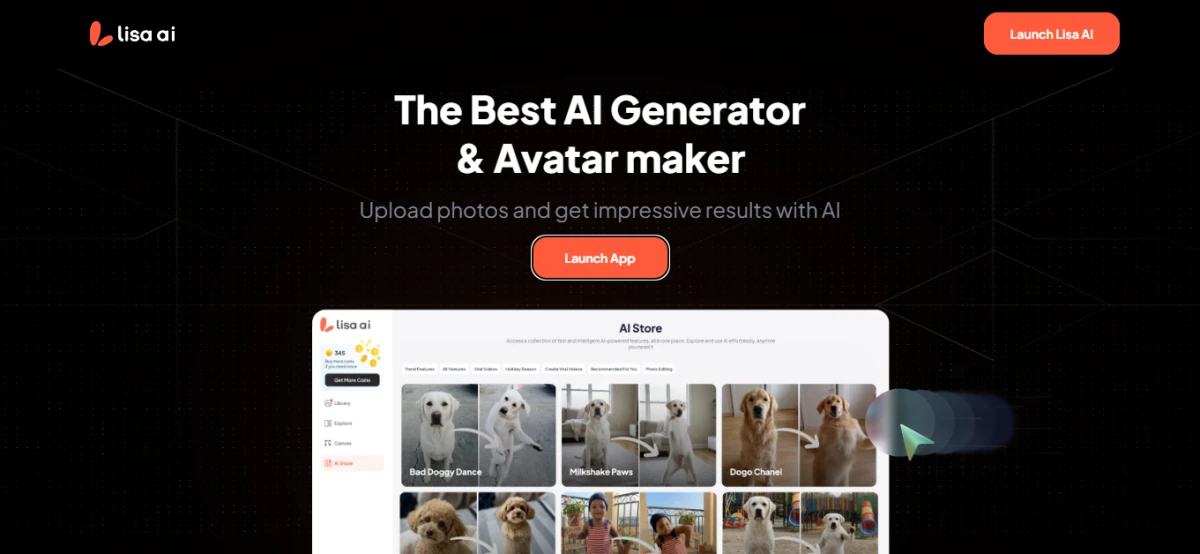
The journey starts on a clean, dark landing page headlined "The Best AI Generator & Avatar maker" with the tagline "Upload photos and get impressive results with AI."
There are two calls to action that do the same thing: "Launch Lisa AI" in the top right corner and a larger "Launch App" button in the center. A preview of the in-app AI Store sits below, showing sample avatar templates like "Bad Doggy Dance," "Milkshake Paws," and "Dogo Chanel."
Clicking either button redirects you into the main application.
2: The Main App
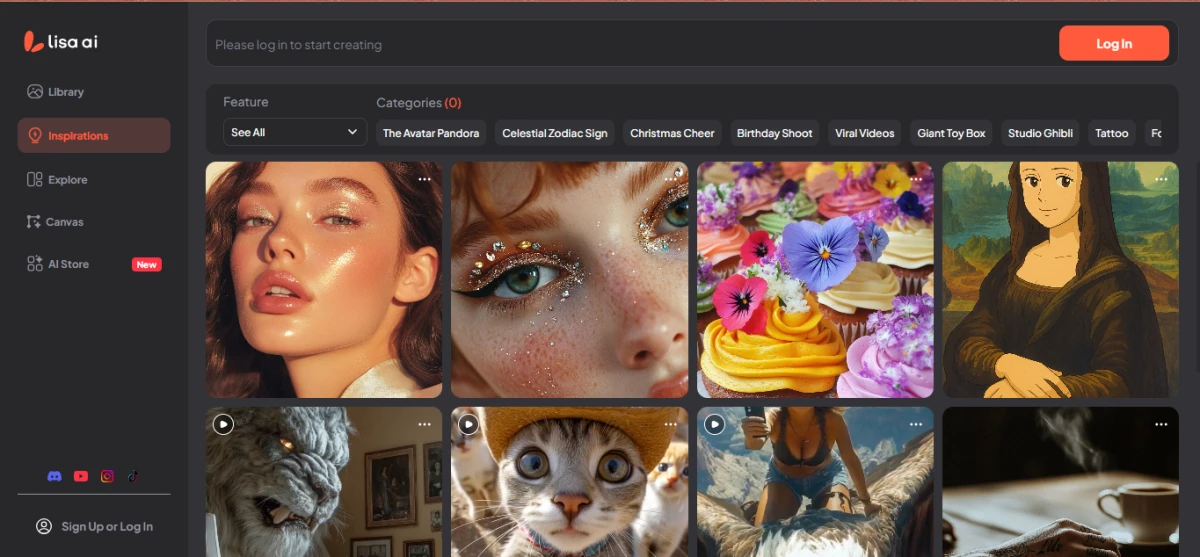
After the redirect, you land on the Inspirations gallery. A left sidebar gives you the core navigation: Library, Inspirations, Explore, Canvas, and an AI Store marked "New." Social links and a "Sign Up or Log In" prompt sit at the bottom.
The top bar already nudges you with "Please log in to start creating" next to a Log In button. Across the page is a row of category filters such as The Avatar Pandora, Celestial Zodiac Sign, Christmas Cheer, Birthday Shoot, Viral Videos, Giant Toy Box, Studio Ghibli, and Tattoo. Below that is a grid of example images and videos showing off the styles you can create.
At this stage everything is browse-only. You can look, but you cannot make anything yet.
3: Browsing and Selecting a Template
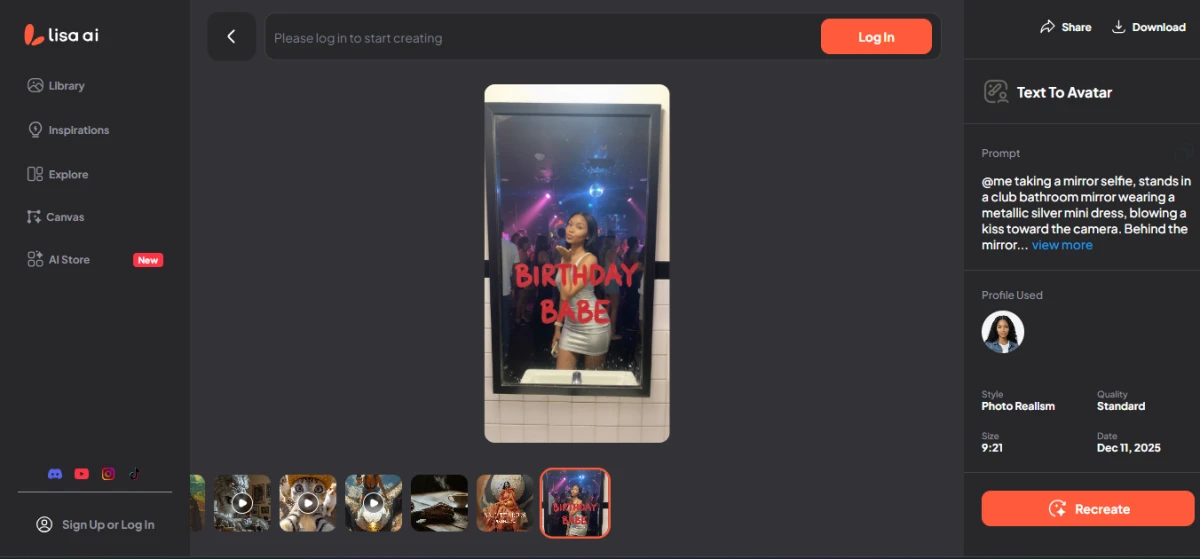
Tapping into a template opens a detail view. In this example it is a "Text To Avatar" piece: a mirror selfie in a club bathroom with "BIRTHDAY BABE" written across it.
The right panel shows you the full recipe behind the result: the prompt used, the profile it was based on, the style (Photo Realism), quality (Standard), aspect ratio, and the date it was created. There is a "Recreate" button to make your own version.
The catch is that the top bar still says "Please log in to start creating." You can preview as many templates as you like, but the moment you try to use one, you hit a login wall.
4: The Login and Sign Up Page
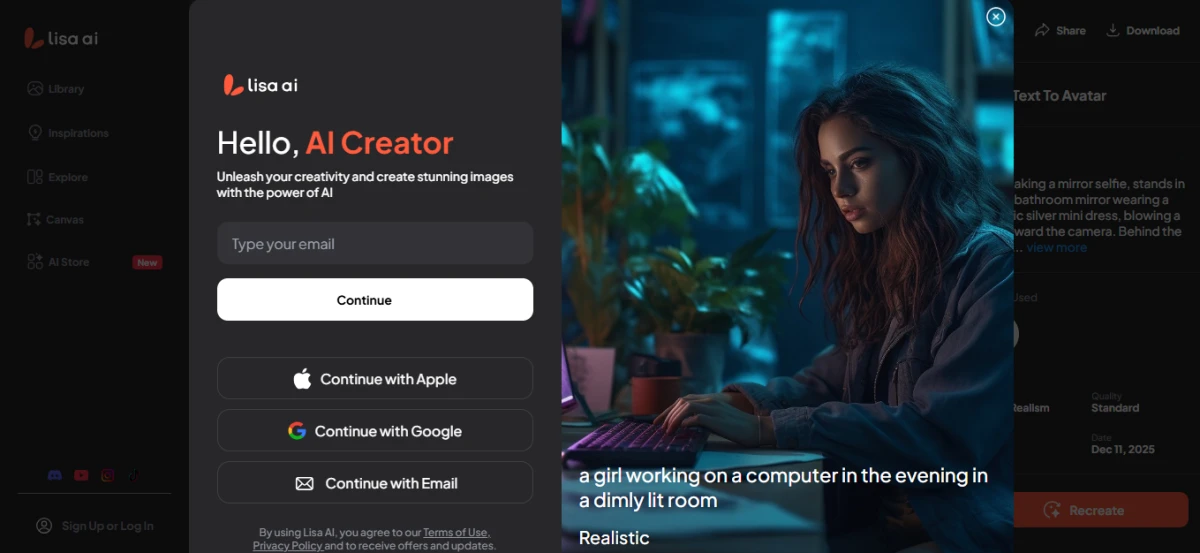
Choosing to proceed brings up the sign-in screen, headlined "Hello, AI Creator" with the line "Unleash your creativity and create stunning images with the power of AI."
You get the standard options: enter an email and continue, or use Continue with Apple, Continue with Google, or Continue with Email. There is a note that by using Lisa AI you agree to the Terms of Use and Privacy Policy and to receive offers and updates.
Signing up here is quick and low-friction, which is exactly the point, because of what comes next.
5: The Subscription Page Appears Immediately
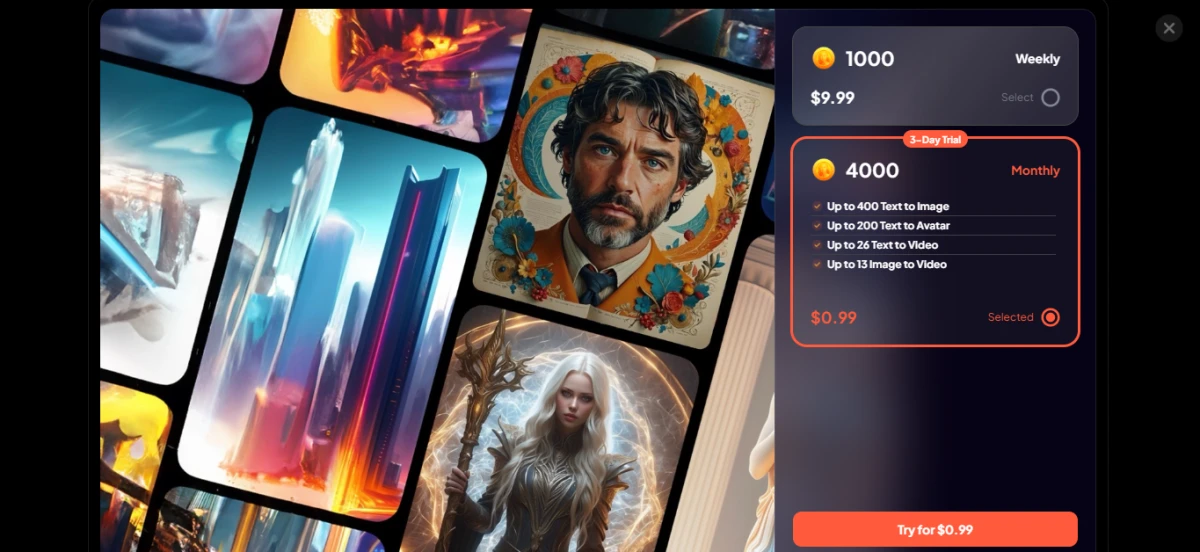
The moment you finish logging in, before you have created a single thing, you are met with a paywall.
Two plans are offered:
- 1000 coins, Weekly, $9.99
- 4000 coins, Monthly, presented with a "3-Day Trial" badge and a preselected "$0.99" entry price. This plan lists its limits as up to 400 Text to Image, up to 200 Text to Avatar, up to 26 Text to Video, and up to 13 Image to Video.
The cheaper trial is selected by default, with a prominent "Try for $0.99" button. You can close this screen, but it sets the tone: the app wants payment up front, right after sign-up.
6: Uploading Reference Photos to Your Profile
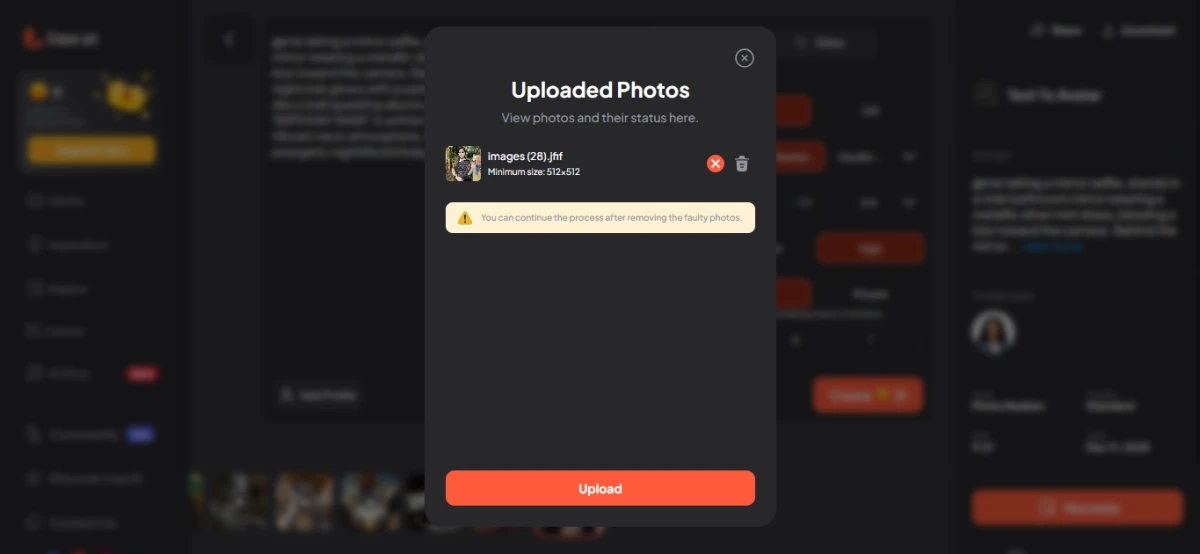
To actually use an avatar template, you need to feed the app your own photos as a reference profile. The "Uploaded Photos" modal lets you add images and shows their status, with a stated minimum size of 512 by 512 pixels.
In this case one upload ("images (28).jfif") was flagged as faulty, with a warning that you can continue only after removing the bad photos. Once your photos pass, you hit Upload to attach them to your profile.
This is a meaningful amount of effort: finding suitable photos, uploading them, and clearing any that fail the size or format check.
7: The Generation Interface
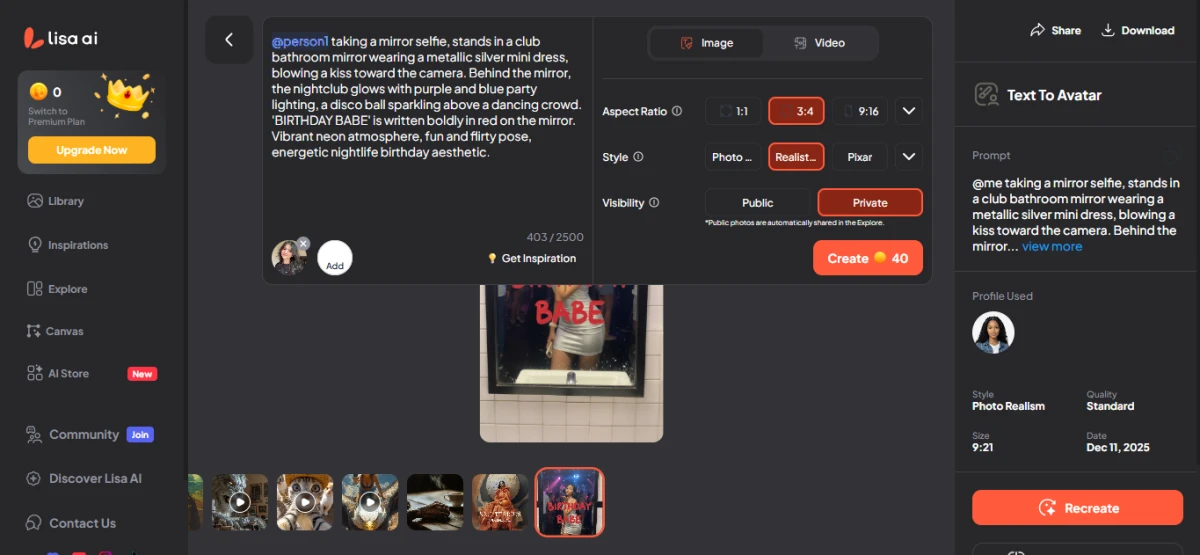
After uploading, you finally reach the creation interface, and it is genuinely full-featured. You can:
- Edit the prompt in a large text box (with a 2500 character limit)
- Switch between Image and Video output
- Choose an Aspect Ratio (1:1, 3:4, or 9:16)
- Pick a Style (Photo Realism, Realistic, or Pixar)
- Set Visibility to Public or Private, with a note that public images are shared in Explore
- Add reference profiles and pull from "Get Inspiration"
The right panel restates your settings, and the generate button reads "Create" with a cost of 40 coins.
Here is the problem. The sidebar now shows a balance of 0 coins alongside "Switch to Premium Plan" and "Upgrade Now." So after logging in, uploading photos, and dialing in every setting, clicking Create simply throws you back to the subscription page. You cannot generate anything because you have no coins and no active plan. The actual payoff is locked behind a purchase.
Final Review
Lisa AI looks the part. The interface is sleek and modern, the dark theme is easy on the eyes, and the range of templates is impressive, covering avatars, viral video styles, Studio Ghibli looks, tattoos, and seasonal themes. The "Text to Avatar" idea, where you upload your own photos and insert yourself into different scenes, is a genuinely appealing hook, and being able to browse finished examples before committing is a nice touch.
The biggest issue is the order of operations. The app front-loads all of your effort and then gates the result. You sign up, you get hit with a paywall immediately, you close it, you go find and upload reference photos, you carefully adjust the prompt, aspect ratio, and style, and only then, after all that work, does the app reveal that you cannot actually generate without paying. By that point you are heavily invested in time, which is clearly the design intent. It is a friction-heavy funnel rather than a try-before-you-buy flow.
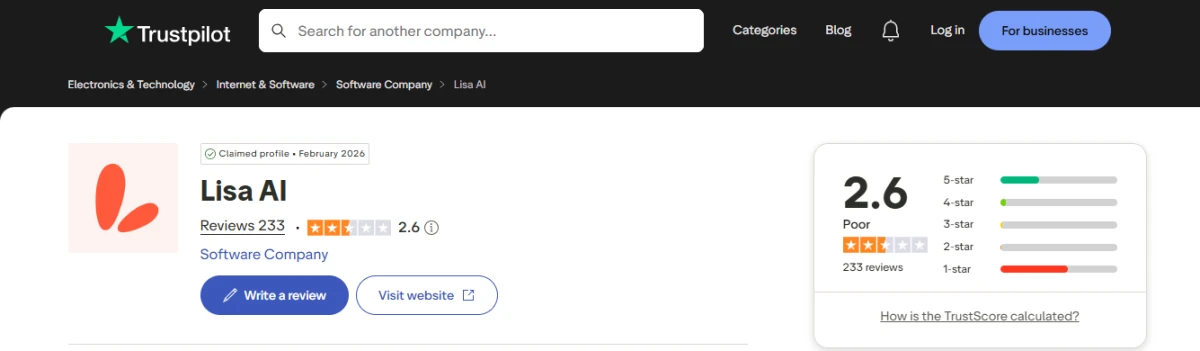
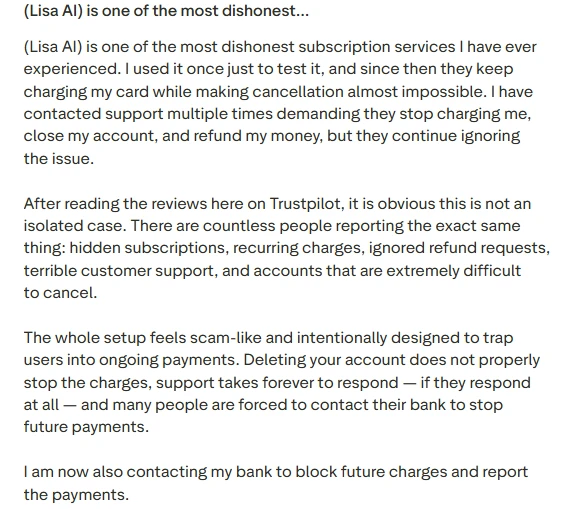
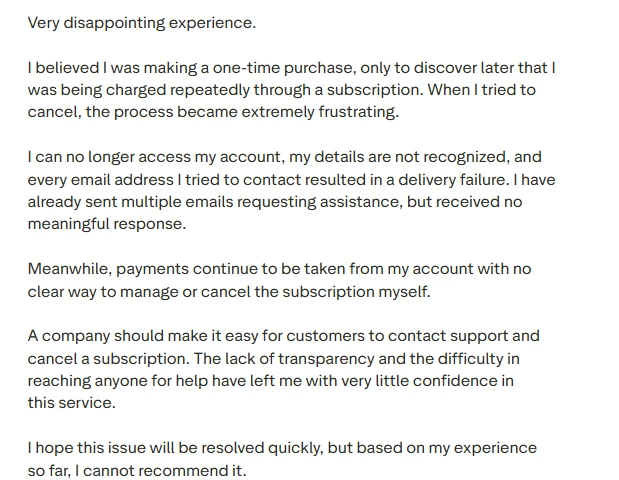
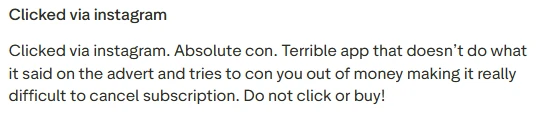
The pricing structure adds to the wariness. The default option is a $0.99 three-day trial that almost certainly rolls into a recurring monthly charge, which is the classic trial trap. There is no option to run even a single free generation, so you are paying before you have any way to confirm that the output quality is good for your specific photos. Paying blind is never ideal, especially with AI tools where results vary a lot from one face or photo set to another.
My verdict: capable tool, polished design, frustrating funnel. If you decide to try it, go in with eyes open. Read the trial terms carefully, set a reminder to cancel before the three days are up if you are not satisfied, and understand that you are committing money before you can verify the quality. If Lisa AI offered even one or two free generations so you could test it on your own photos, this would be an easy recommendation. As it stands, the aggressive paywall makes it hard to trust before you have spent anything.