

Testing Fliki AI: Making a Video from Text
1: Signing in
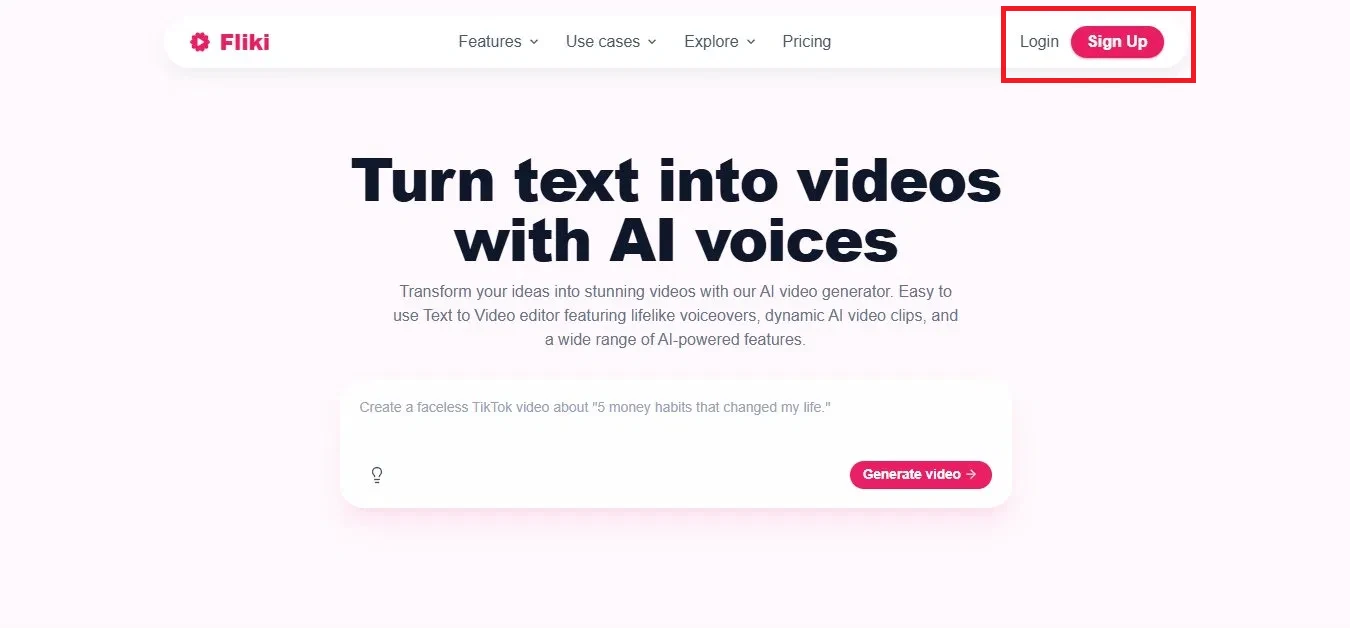
The landing page summed the tool up cleanly as a way to turn text into videos with AI voices, with a prompt box, an example idea, a Generate video button, and Login and Sign Up in the top right.
My take: the pitch was clear, but I noticed I could not actually build or save anything until I signed in, so the real starting point was gated behind an account rather than the prompt box on the homepage.
(Image 1 below: the Fliki landing page, with sign up or log in at the top right.)
2: Reaching the console and entering my idea
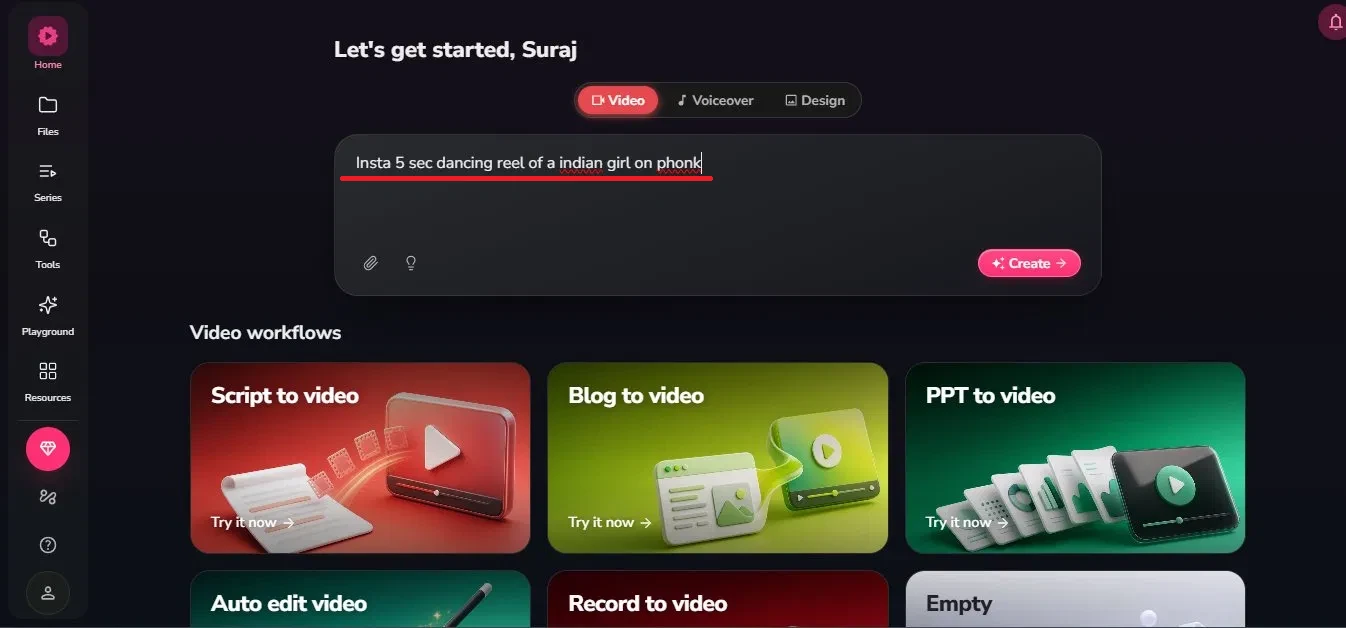
After logging in I landed on a console that greeted me by name, with Video, Voiceover, and Design across the top, a prompt box, and a set of workflows underneath: Script to video, Blog to video, PPT to video, Auto edit video, Record to video, and Empty. I typed a short idea for the reel:
Instagram 5 sec dancing reel of a indian girl on phonk
My take: I liked that the named workflows made it obvious where to begin instead of leaving me guessing. My idea was barely one line, so I was genuinely curious how much it could do with so little to work from.
(Image 2 below: the Fliki console, where you type your idea or pick a workflow.)
3: Giving it my idea
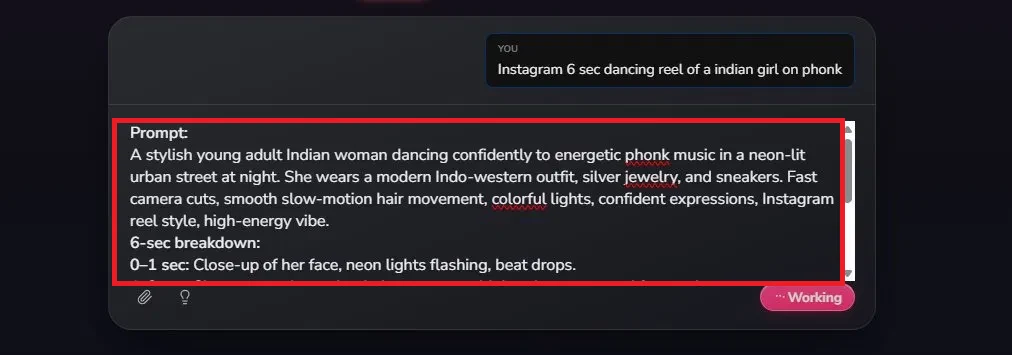
Fliki asked whether I was starting from a script, a video idea, or a blog. I gave it the idea, and its assistant turned that one line into a full, detailed prompt with a second by second breakdown of the shots. You can also paste your own script here. The script it built was this:
Prompt: A stylish young adult Indian woman dancing confidently to energetic phonk music in a neon-lit urban street at night. She wears a modern Indo-western outfit, silver jewelry, and sneakers. Fast camera cuts, smooth slow-motion hair movement, colorful lights, confident expressions, Instagram reel style, high-energy vibe.
6-sec breakdown: 0 to 1 sec: Close-up of her face, neon lights flashing, beat drops. 1 to 3 sec: She starts a sharp phonk dance move with hand gestures and footwork. 3 to 5 sec: Camera spins slightly as she does a confident step and hair flip. 5 to 6 sec: Freeze-frame style ending with a bold pose and bass hit.
Text overlay: "Desi Phonk Energy"
Style: Vertical 9:16, cinematic, vibrant, fast edits, trendy Instagram reel.
My take: this was the part that impressed me most. I handed it a vague one liner and got back a full shot by shot plan. It felt like the tool was doing the creative heavy lifting, though I did notice it made choices for me (the outfit, the lighting, the mood) that I never specified.
(Image 3 below: Fliki's assistant building a detailed script from the short idea.)
4: Waiting while it wrote the script
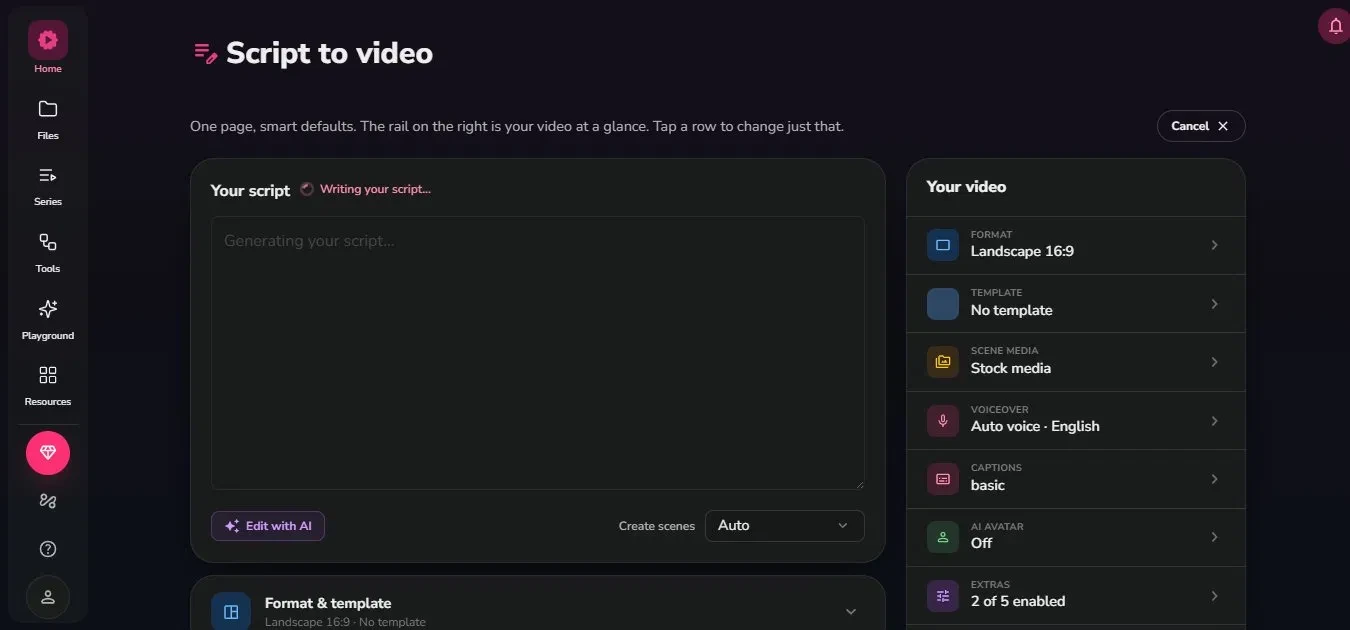
From there it moved to the Script to video screen and wrote the overall script for me. A note at the top explained the layout: one page with smart defaults, and a rail on the right that acts as your video at a glance. While the script generated I could watch the plan take shape, with options below to edit with AI and to control how scenes are created. My take: I appreciated being able to watch the script form in real time, and the right-hand rail working as a running preview meant the wait did not feel like staring at a blank loader.
(Image 4 below: the Script to video screen, writing the script while you wait.)
5: Choosing and enhancing the settings
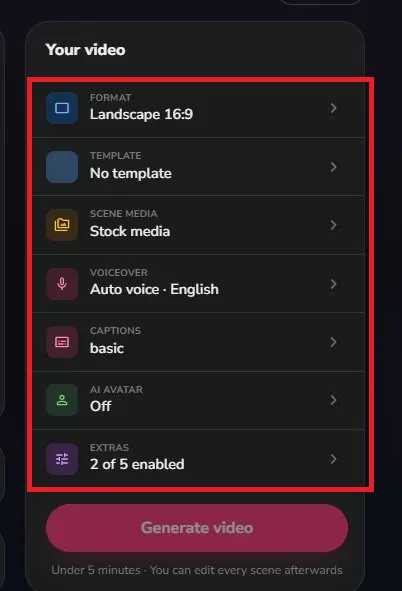
The panel on the right is where I shaped the video before generating. I could set the Format (Landscape 16:9 here), the Template, the Scene media (Stock media), the Voiceover (Auto voice, English), the Captions (basic), an AI Avatar (off), and Extras, then press Generate video. Fliki estimated under five minutes and noted I could edit every scene afterwards.
My take: there was more control here than I expected from an AI tool. One thing caught my eye though: even though my idea asked for a vertical 9:16 reel, the format defaulted to Landscape 16:9, so I had to check the setup carefully before generating.
(Image 5 below: the video settings on the right; adjust these, then press Generate video.)
6: The editor and the finished video
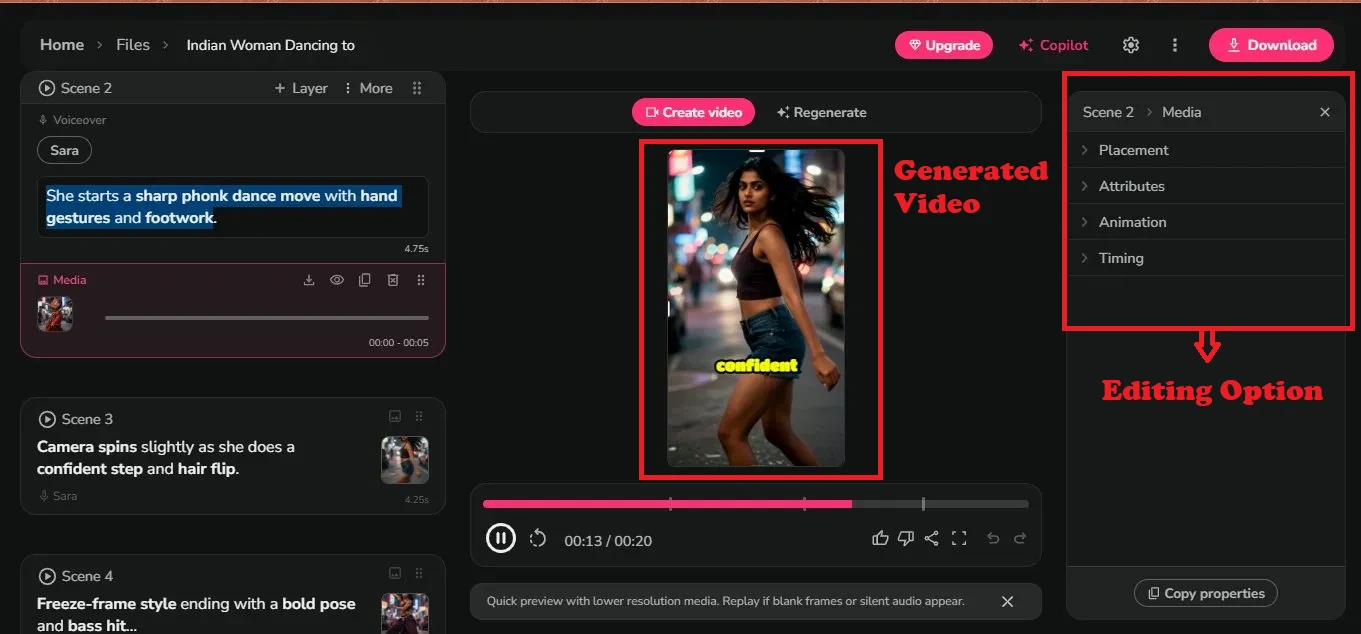
This opened the editor, with the video playing in the middle and the left side listing each scene, its voiceover line, its media, and its timing, voiced by a voice named Sara with captions burned in. The right panel let me fine tune placement, attributes, animation, and timing for the selected scene.
My take: this is where my test slowed right down. It threw an error around the five minute mark, and after running the whole flow again the video took about ten minutes in total, double the estimate. The editor itself was detailed and genuinely useful, but the stumble knocked my confidence a little.
(Image 6 below: the Fliki editor with the finished video, scene by scene on the left.)
7: Downloading and exporting
To save the video, the Download button opened an export dialog. On the free plan I could pick a resolution (up to 720p here) and a format (MP4). A panel pointed out that upgrading unlocks more, including 1080p, the MOV format, no watermark, and subtitle downloads in SRT and VTT. Pressing Start export saved the file.
My take: the export was the clearest reminder that I was on the free plan. I could save the video, but it came capped at 720p with a watermark, and the better options all sat behind an upgrade.
(Image 7 below: the export dialog; the free plan caps resolution and adds a watermark, while upgrading unlocks more.)
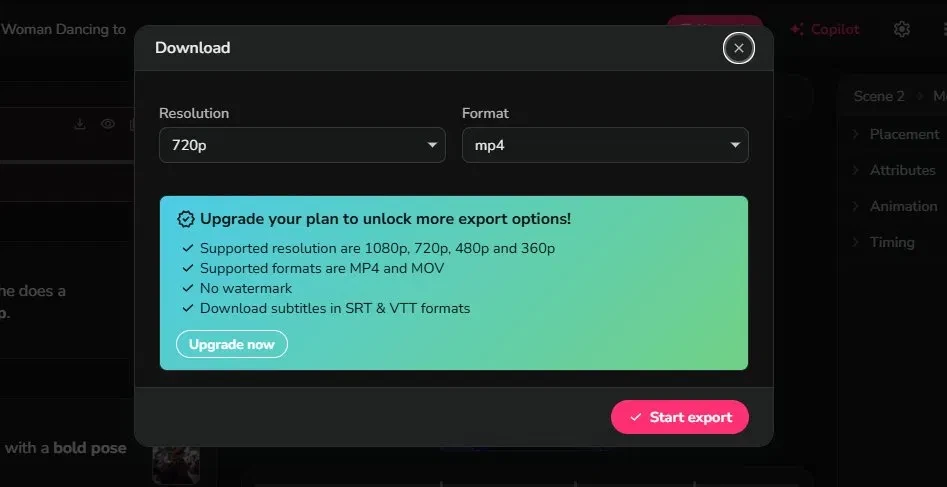
Image 7: The export dialog. The free plan caps the resolution and adds a watermark; upgrading unlocks more.
What went smoothly
- Starting from a single idea was effortless, since it expanded one rough line into a full script and a scene by scene plan.
- It greeted me by name and laid the workflows out clearly, so I always knew where to begin.
- Watching the script and the preview rail build in real time made the waiting feel productive rather than dead.
- There was real control: format, template, voiceover, captions, avatar, and per scene editing, both before and after generating.
What slowed me down
- Generation was slow and a little unreliable, throwing an error around the five minute mark, with the final video taking roughly ten minutes (double the estimate).
- The format defaulted to Landscape 16:9 even though my idea was a vertical 9:16 reel, so the setup needed checking before I generated.
- The free plan capped the export at 720p with a watermark, while 1080p, the MOV format, and subtitle files (SRT and VTT) all need an upgrade.
- The expanded prompt made creative calls for me (outfit, lighting, mood) that I never specified, so it needed a review to stay on track.
Overall, Fliki is a capable text to video tool with a genuinely smooth idea to script flow and solid editing control. Just go in ready for slow, occasionally glitchy generation and the free plan limits, like the watermark and the 720p cap, if you are not upgrading.